



Insights
Webflow
Copy Link




Mapear contenido, configurar redirecciones 301, migrar campos SEO, reconstruir formularios/plugins y ejecutar control de calidad post-lanzamiento para evitar la pérdida de tráfico.
A WordPress-to-Webflow move can hurt traffic and lead flow if you miss the hidden parts. From what I see in this guide, the main risks are content mapping, URL changes, SEO fields, plugin loss, forms, filters, and post-launch QA.
Before I move a site like this, I'd focus on a short list:
A few numbers stand out:
Before starting your migration, it is helpful to compare Webflow vs WordPress to understand which platform better serves your marketing goals.
| Area | WordPress | Webflow |
|---|---|---|
| Content setup | Posts, pages, CPTs, ACF, taxonomies | Collections, static pages, reference fields |
| SEO data | Often handled by plugins like Yoast or Rank Math | Native SEO fields + manual schema/code |
| Redirects | Plugins or server rules | Native redirect manager |
| Forms | Plugin-based flows and routing | Rebuilt forms, app syncs, or automation tools |
| Search and filters | Often built in with plugins | Rebuilt with CMS, apps, or custom code |
| Speed | Can slow down with many plugins | Often faster, but scripts and media can still drag it down |
If I had to sum up the article in one line, it's this: the design is not the hard part - data, URLs, SEO, and QA are.
Each WordPress content type needs a clear home in Webflow before you import anything. If you skip that step, cleanup piles up fast.
WordPress content types - posts, CPTs, ACF fields, and taxonomies - need to be remapped into Webflow Collections. Standard blog posts become items in a Webflow CMS Collection. Static pages are rebuilt as static pages in the Designer. Categories and tags need their own Collections plus reference fields. Archive and filter behavior should also be mapped ahead of import.
| WordPress Element | Webflow Equivalent | Mapping Method |
|---|---|---|
| Standard Post | CMS Collection Item | CSV import to "Blog" Collection |
| Static Page | Static Page | Manual rebuild in Designer |
| Custom Post Type (CPT) | CMS Collection | New Collection (e.g., "Case Studies") |
| Category / Tag | CMS Collection | Reference / Multi-reference field |
| ACF / Custom Fields | CMS Fields | Map to Text, Image, Option, etc. |
| Author | CMS Collection | Reference field to "Authors" Collection |
Webflow CMS limits matter early: 2,000 items on CMS plans and 10,000 items on Business plans.
Once that map is in place, the next problem is what happens during export.
If the field map is off, exports turn into a mess of manual fixes.
WordPress exports XML, while Webflow imports CSV. That means you'll usually need an export tool or a script to split content by post type before import. Blog posts, case studies, and testimonials should each be separated so they land in the right Collection.
Yoast and Rank Math metadata need their own export and mapping process. Custom meta titles, descriptions, and OG tags live inside those plugins, not in the default WordPress export. Move them into the matching SEO fields in Webflow before import.
Images need extra care too. Embedded WordPress images often still point to the old host or CDN, so they should be re-uploaded into Webflow before the old site is taken down. During CSV prep, strip out shortcodes and custom Gutenberg blocks as well. They don't import cleanly.
Once content is inside Collections, URL structure becomes the next SEO risk. A URL change can affect rankings, attribution, and paid landing pages.
Static pages with simple slugs like /about-us or /contact can usually stay the same. Blog posts and custom post types are where changes happen more often. WordPress may serve content at the root level or with date-based paths, while Webflow CMS items usually sit under a collection slug like /blog/post-name or /resources/post-name.
A redirect map helps protect search equity and campaign tracking. The easiest way to handle it is with a spreadsheet:
Make sure author archives and campaign landing pages are covered. Tracking parameters and attribution URLs should stay intact.
Keep redirects lean. If the same pattern shows up again and again, use wildcard rules where they fit. And build redirects before launch, not after, so search and campaign traffic goes to the right place from day one.
Once redirects are in place, the next big risk is SEO carryover. This is where a lot of migrations get messy. Metadata, canonicals, schema, and plugin-based SEO settings usually don't move over cleanly.
Rankings don't move automatically from WordPress to Webflow. If traffic drops, the cause is usually one of a few things: missed redirects, missing metadata, broken canonicals, or lost schema.
Before launch, export your top 50 organic pages, record your indexed URLs, check for manual actions, and benchmark PageSpeed on your top 10 pages.
Yoast and Rank Math store meta titles, meta descriptions, and Open Graph data outside your main post content. That means those fields won't come across on their own. You need to export them to CSV, then map each value to the right Webflow CMS fields before import.
Canonical tags need the same treatment. Build them as dedicated fields inside your CMS structure so each page keeps the right canonical target.
The default Article and WebPage schema that Yoast adds on its own also won't come along for the ride. In Webflow, you'll need to rebuild that schema with JSON-LD and place it in the page or Collection Head Code settings.
Page-level noindex rules and sitemap exclusions don't transfer either. Reapply those by hand in Webflow page settings.
Once the field mapping is done, go through every SEO-related plugin and setting that controlled crawl behavior in WordPress. If you skip that step, small issues can pile up fast.
Losing custom meta titles and descriptions can lead to a 20–40% drop in click-through rates as Google reverts to auto-generated snippets.
Most WordPress plugins don't have a one-click match in Webflow. Some jobs move into native settings. Others need third-party tools. And a few just come down to custom code.
Here's a simple plugin-to-Webflow map:
| WordPress Plugin | Webflow Equivalent |
|---|---|
| Yoast / Rank Math | Native SEO fields (Meta/OG) + custom CMS fields |
| Redirection / .htaccess | Native 301 redirect manager (Site Settings > Hosting) |
| WPML / Polylang | Webflow Localization (native add-on) |
| ACF (Advanced Custom Fields) | Native Webflow CMS fields |
| Schema Pro / Yoast Schema | Manual JSON-LD in custom code (Head section) |
| Contextual Related Posts | CMS reference or multi-reference fields |
| Breadcrumb NavXT | Manual breadcrumb links or CMS-driven collection lists |
This part matters more than it seems. A plugin may look small in WordPress, but it may be doing a lot behind the scenes, especially around indexing, page signals, or content relationships.
Multilingual sites need their own migration plan. You can't assume language routing and hreflang will rebuild themselves.
If your site is multilingual, rebuild language folders, subdomains, and hreflang tags in Webflow Localization before launch. If hreflang is mapped the wrong way, regional versions of your site can start competing with each other in search, or vanish from local results.
Translated CMS content also needs its own Collection structure in Webflow. Each language version should be treated as its own content mapping job, not something you tack on after the English content is live.
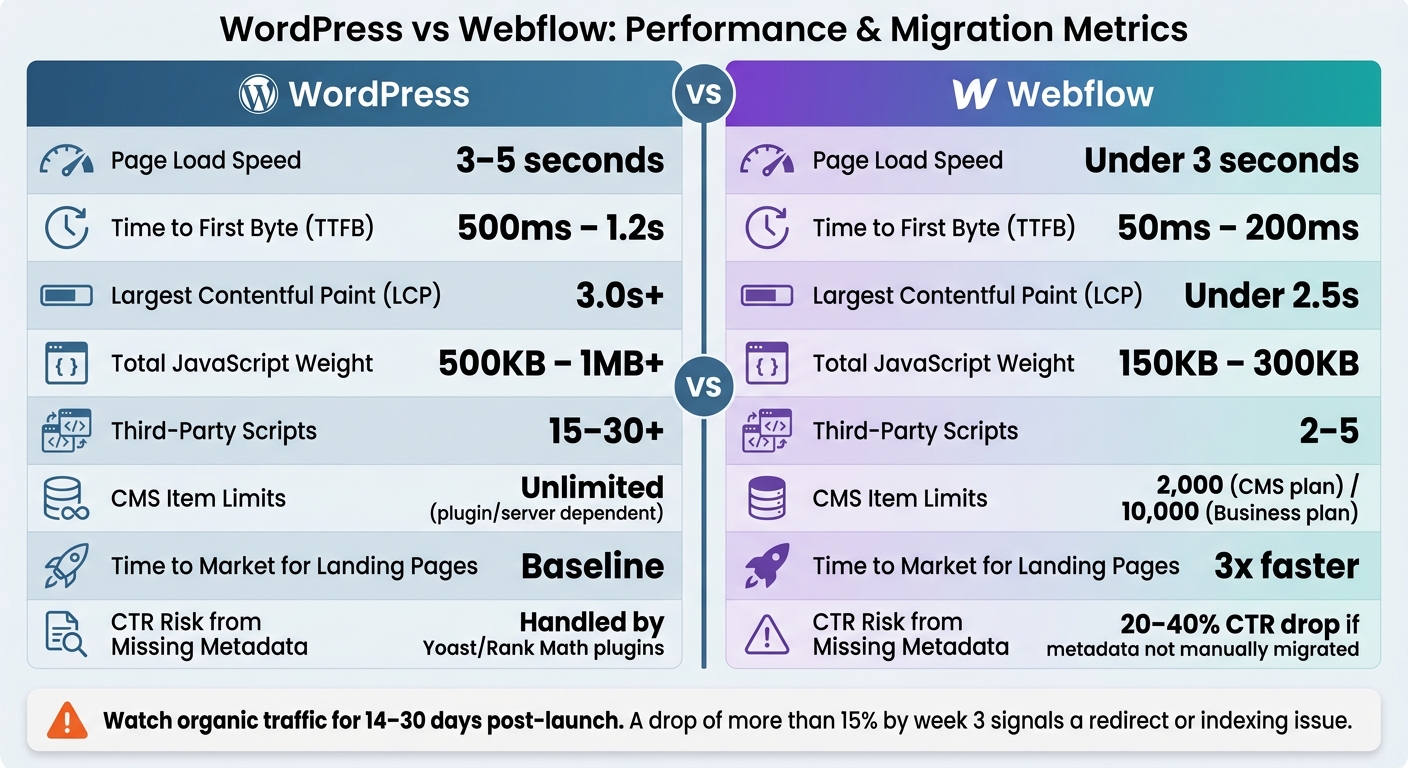
WordPress vs Webflow: Key Performance & Migration Metrics
Once SEO is mapped, the next big risk is in the moving parts WordPress used to handle quietly in the background.
Every form needs to be rebuilt in Webflow. That includes fields, hidden values, autoresponders, spam rules, and CRM routing. None of that moves over on its own. Webflow can handle spam protection out of the box, but any custom routing or filtering needs to be set up again in the new stack. And if your CRM links used to run through WordPress plugins, those connections usually shift to Webflow apps like HubSpot or to tools like Zapier and Make.
Gated landing pages need the same care. If a download page relied on a form plugin to trigger an email follow-up sequence, that whole flow has to be rebuilt and tested from start to finish. Don't assume it works because the page looks right. Send test submissions through every rebuilt form before launch and make sure the data lands in the right place.
The next set of rebuilds covers the site behaviors people notice first.
Site search, blog filters, and taxonomy browsing all need to be rebuilt in Webflow. They do not transfer as-is. These systems shape navigation, lead capture, and how well campaign pages work. In many cases, on-page filters need a third-party tool like Finsweet Attributes or Jetboost, or they need custom code.
Category and tag archives also need to be rebuilt as Webflow Collection templates. The same goes for resource hubs with several filtering layers. In WordPress, a lot of this may have worked automatically. In Webflow, it has to be mapped into Collections by hand. Shortcodes and Gutenberg layouts can't just be imported either; they need to be rebuilt. That's why teams should decide early whether they want to mirror the current setup closely or use the move as a chance to simplify it.
Once the working parts are rebuilt, check speed again on the same key pages. That's the only way to make a fair comparison.
Webflow's built-in hosting on AWS with a Fastly CDN gives many migrated sites a speed bump right away. Plugin-heavy WordPress sites often load in 3–5 seconds, while Webflow sites usually land in under 3 seconds. Cleaner output and fewer scripts often help trim load time.
But those gains don't come for free. Heavy third-party scripts, uncompressed media, and animation-heavy interactions can wipe out the edge fast. Test both speed and site behavior before launch so you can confirm the gains actually hold.
Here are the benchmark categories often used to compare the two setups.
| Metric | WordPress (Typical) | Webflow (Typical) |
|---|---|---|
| TTFB (Time to First Byte) | 500ms – 1.2s | 50ms – 200ms |
| LCP (Largest Contentful Paint) | 3.0s+ | < 2.5s |
| Total JS Weight | 500KB – 1MB+ | 150KB – 300KB |
| Third-Party Scripts | 15 – 30+ | 2 – 5 |
Once the forms, search, and design are rebuilt, the risk shifts. At that point, the biggest problems are usually the ones that don't show up right away.
A polished homepage can make the launch look clean. That doesn't mean the migration actually is. Trouble tends to surface in blog templates, old landing pages, redirect chains, and forms that didn't get tested end to end.
One of the most common silent failures is hardcoded links. In WordPress, posts often include raw href links pasted straight into rich text fields. If those URLs weren't updated to fit the new Webflow structure, visitors can land on 404 pages or get sent through extra redirect hops. The same thing happens with images inside rich text. If those files still point to the old WordPress server or CDN, they'll vanish the moment that hosting gets shut off.
Tracking can fail just as quietly. Google Tag Manager working on the homepage doesn't mean it's working across every template. That's why a post-launch crawl with Screaming Frog or Sitebulb matters. It can spot broken internal links, orphaned pages, and missing metadata across templates, not just the handful of pages someone checked by hand. After launch, submit the sitemap and request indexing for the highest-traffic pages. Then check GSC every day for the first 14 days.
Redirects need a close look too. Audit long redirect lists before launch. If you go past 1,000 redirects, page load performance can slow down for every visitor on the site. And if the old WordPress site went through years of URL changes, those layers can stack up fast. Clean up and combine redirects where you can before go-live, so the list stays under control after launch.
After launch QA, the next issue is ownership: who can edit what without damaging shared components?
Webflow gives editors more room to make changes, which is great until someone edits a shared element that affects half the site. Teams need written rules that spell out what's safe to change directly and what needs a developer or design review. Webflow's staging and branching features help a lot here. Structural changes should be tested in staging before they go live.
With launch checks done, the focus turns to protecting traffic while the team gets used to the new setup.
Watch SEO, redirects, forms, and indexing daily for 14 days. After that, switch to weekly checks through day 30. If organic traffic drops by more than 15% and still hasn't bounced back by week three, you're likely dealing with a redirect or indexing issue that needs fast action.
It's also smart to keep the old WordPress site accessible for at least 30 to 90 days after launch. Not public, just reachable. That's the fastest way to verify old content, track down issues, and recover anything that didn't transfer cleanly.
"Skip steps and things break silently." - Parth Gaurav, Founder & CEO, Digi Hotshot
A typical migration from WordPress to Webflow takes about 2 to 10 weeks. The timeline mostly depends on how much content you have, how complex that content is, and how much checking is needed before launch.
In most cases, SEO stabilization happens within 4 to 8 weeks after the migration.
Before moving your site from WordPress to Webflow, audit the basics first. That step helps you spot problems early, before they turn into launch-day headaches.
Review these areas:
It also helps to document what should be migrated, replaced, or removed. Be clear about what stays, what gets rebuilt, and what no longer needs to come along for the ride.
Then map out testing before launch. Focus on forms, links, CMS templates, redirects, and integrations so nothing slips through the cracks.
Bring in migration help when the move is complex, large-scale, or high-stakes and mistakes could lead to broken redirects, lost SEO rankings, or post-launch errors.
This kind of help is especially useful if you need support with:
A site migration can go sideways fast. One missed redirect or one bad metadata transfer can create problems that are hard to spot until traffic starts to drop. That's why extra support makes sense when there's a lot on the line.