



Insights
Webflow
Copy Link




Structure Webflow CMS collections, automate meta tags and URLs, add schema and optimized media, and scale dynamic content to improve SEO and Core Web Vitals.
Webflow CMS simplifies managing dynamic content and improving SEO by allowing you to create structured databases called Collections. These Collections can store data for blogs, products, or landing pages, which are then used to generate responsive, SEO-friendly pages automatically. Here's what makes it effective:
When setting up CMS Collections, aligning them with search intent is key. This means organizing your content database to reflect what users are searching for on Google. Start by conducting keyword research to find high-volume, low-competition keywords that match user intent - whether it's informational (like "how to optimize Webflow SEO"), navigational (such as "Webflow CMS login"), or transactional (e.g., "buy Webflow template").
In Webflow's CMS panel, you can create a new Collection (like "Blog Posts" or "Service Pages") and add custom fields tailored to intent-driven content. For example, include fields such as Title, SEO Keywords, Search Intent Type (using an Option field with values like "Guide", "Tutorial", or "Comparison"), and Body Content with Rich Text. Target keyword clusters like "Webflow SEO tips" by adding primary and related keyword fields. This setup allows Webflow to generate SEO-friendly pages from a single template, making it easier to scale your content library without manually building each page.
To optimize metadata, use Plain Text fields to avoid truncation in search results. Enhance internal linking by connecting related Collection items with Reference fields, which helps create natural pathways that boost topical authority. Agencies like The Hoop Studio integrate this CMS strategy right from the start of their Webflow projects, ensuring a clean, organized, and scalable foundation. This thoughtful setup not only streamlines content management but also strengthens your site's SEO by aligning every page with user intent.
Once your Collections are built around search intent, the next step is organizing your content so search engines can easily crawl and interpret its structure. Use Reference fields to establish hierarchical relationships between Collections. For instance, link a "Blog Posts" Collection to a "Categories" Collection, ensuring each post fits within a broader topic cluster. This semantic structure helps Googlebot understand your site’s architecture, making crawling more efficient.
Set up dynamic URLs using clean slug formats, such as /blog/[slug-from-title], instead of generic IDs or dates. These readable, keyword-rich URLs appeal to both users and search engines. To prevent duplicate content issues, apply canonical tags, especially when the same Collection items appear across filtered views or category pages. Webflow’s clean code output ensures that crawlers can access and index your dynamic pages without any technical hiccups.
For larger Collections, implement pagination and optimize queries to maintain site performance. Loading hundreds of items on one page can slow down metrics like Largest Contentful Paint (LCP), a Core Web Vitals factor that affects rankings. Stick to consistent structures across similar content types to build topical authority signals that search engines recognize. This structured approach naturally leads to interconnected content hubs, complete with categories and tags.
With your Collections and URL structures in place, focus on refining navigation using categories and tags. These elements transform your CMS into an interconnected content hub, enhancing both user experience and SEO. Start by creating a separate "Categories" Collection, then use a Reference field in your main Collection (like "Posts" or "Resources") to link each item to its parent category. This creates topic clusters where category pages act as hubs, offering overview content and automatic links to related items. This setup also helps distribute link equity across your site.
For cross-topic connections, use Multi-Reference fields for tags. For example, a blog post about "Webflow animations" could be tagged with both "Design" and "Development", allowing it to appear in multiple filtered views. You can design dynamic navigation lists or filter systems on your category and tag pages to generate internal links automatically. This improves crawlability while helping users discover related content effortlessly.
| Dynamic Title Formula | Use Case | Example Output |
|---|---|---|
| [Post Title] | [Category] Guide | [Brand Name] | Blog posts | "Optimizing Images | SEO Guide | Your Brand" |
Avoid field setups that don’t serve clear SEO goals or neglect Reference links that could lead to content silos. The Hoop Studio emphasizes that an effective CMS setup and SEO strategy should be planned from the very beginning. This ensures your site architecture supports organic growth while simplifying content management as your business expands. By using categories and tags strategically, you not only improve navigation but also help search engines better understand and rank your content clusters.
Webflow CMS SEO Elements Setup Guide and Best Practices
Once your CMS Collections are structured and your navigation is user-friendly, the next step is to fine-tune dynamic SEO elements to boost your search visibility.
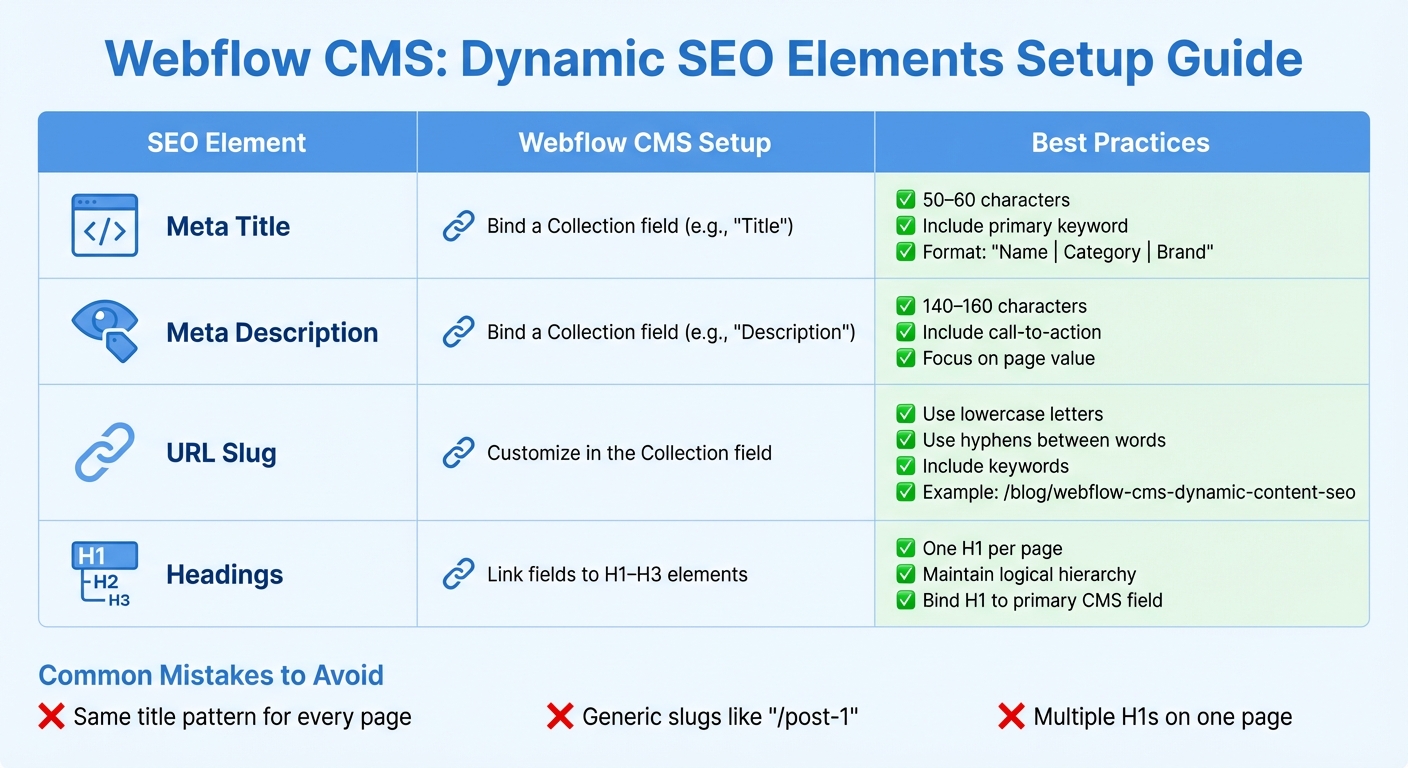
Dynamic meta titles and descriptions can make a big difference in your search performance. By linking CMS fields to your Collection Page templates, you can automatically generate unique metadata for each page. For example, stick to a format like "Name | Category | Brand" for meta titles, keeping them between 50–60 characters. For descriptions, aim for 140–160 characters, focusing on the page's value and including a primary keyword.
In Webflow, you can configure this by opening your Collection Page template, clicking the gear icon to access Page Settings, and navigating to the SEO and Open Graph panels. Here, you can bind CMS fields to automatically populate metadata for each page. For Open Graph settings, do the same for the OG title, description, and image. This setup ensures that your pages share optimized metadata on social platforms, potentially increasing click-through rates and supporting SEO indirectly.
Once your metadata is ready, the next area to tackle is creating clean, user-friendly URLs.
URLs play a critical role in both user experience and how search engines crawl your site. In Webflow, you can set a Collection slug (like "/blog/") and customize each item’s URL slug, usually based on the Name field. Use lowercase letters, hyphens, and concise keywords to make the slugs descriptive and easy to read.
For example, a blog post could have a URL like "/blog/webflow-cms-dynamic-content-seo". Organize Collection-level slugs to match your site’s structure - blog posts under "/blog/[post-slug]", case studies under "/case-studies/[client-or-outcome-slug]", and resources under "/resources/[topic-slug]". This logical hierarchy helps search engines understand your content clusters and makes internal linking more intuitive.
Once your URLs are streamlined, focus on optimizing headings and page content to strengthen your SEO signals.
Headings are not just about style - they’re critical for SEO. Bind your H1 element to the primary CMS field (like Name) to ensure the main keyword is included. Stick to one H1 per page, then use H2 and H3 elements to structure the rest of your content logically.
For the body content, start with a summary or intro field that addresses user intent while naturally incorporating keywords. Use a Rich Text field for the main content, breaking it into short paragraphs with subheadings to maintain readability. Avoid keyword stuffing, but make sure to include related subtopics and synonyms to improve semantic relevance. To strengthen internal linking and topical clusters, add an H2 section featuring related items using Reference or Multi-Reference fields.
| SEO Element | Webflow CMS Setup | Best Practices |
|---|---|---|
| Meta Title | Bind a Collection field (e.g., "Title") | 50–60 characters; include the primary keyword |
| Meta Description | Bind a Collection field (e.g., "Description") | 140–160 characters; include a call-to-action |
| URL Slug | Customize in the Collection field | Use lowercase letters, hyphens, and keywords |
| Headings | Link fields to H1–H3 elements | Use one H1 per page; maintain a logical hierarchy |
Avoid common mistakes like using the same title pattern for every page, leaving generic slugs like "/post-1", or using multiple H1s on a page. To prevent these issues, set up required CMS fields for SEO titles, descriptions, and slugs. Use field validation to ensure each is unique, and build a clear heading structure into your template to guide editors.
Agencies like The Hoop Studio use these methods to efficiently create SEO-optimized Webflow sites. This approach allows marketing teams to launch targeted pages quickly while ensuring technical SEO, compelling copy, and brand consistency are all aligned.
Optimizing media and structured data goes beyond just text and URLs - it’s about giving search engines more context while improving user experience. When you configure images, videos, and schema markup effectively in Webflow CMS, you’re creating a stronger foundation for SEO.
Let’s dive into how dynamic media and structured data can enhance your site’s performance.
Every image in your CMS should pull from SEO-friendly data to streamline optimization. Start by uploading images with keyword-focused filenames, like webflow-landing-page-design-chicago.jpg. This simple step helps search engines understand your content better.
For alt text, generate dynamic descriptions using CMS fields. For instance, you could set up alt text like: "{service_name} web design in {city}, USA." This approach not only improves accessibility but also signals search engines about your content’s relevance.
To ensure images load quickly and look great across devices, set maximum widths for desktop, tablet, and mobile. This adjustment optimizes Core Web Vitals and enhances SEO. For U.S. audiences, make sure any numbers or prices in graphics follow standard formats, such as $1,200.50 or dates like 03/15/2025, so screen readers and users can interpret them accurately.
Agencies like The Hoop Studio often integrate these practices into CMS templates, allowing marketers to add new assets without needing to tweak design or SEO settings manually.
Webflow doesn’t have built-in schema controls, but you can inject JSON-LD through page settings or Embed elements, mapping fields from your CMS. For example, you can add structured data to a blog post using this JSON-LD template:
{
  "@type": "Article",
  "headline": "{{name}}",
  "datePublished": "{{published-on}}",
  "author": {
    "@type": "Organization",
    "name": "{{site-owner}}"
  }
}
For U.S.-based businesses, include "priceCurrency": "USD" and use standard decimal formats like "price": "1299.00" in your Product or Service schemas. Common schema types include:
Once implemented, test your structured data using tools like Google’s Rich Results Test or Schema.org’s validator. This ensures there are no syntax errors and that all required fields are correctly populated. Keep an eye on Google Search Console for any issues with your structured data templates.
For video content, create CMS fields for details like video platform URL/ID, title, description, thumbnail, duration, and publish date. Use Webflow’s video element or an Embed component to dynamically pull the video ID for each CMS item. Pair this with VideoObject schema that includes fields like name, description, thumbnailUrl, uploadDate, and duration. This setup can help your videos appear in rich results while boosting engagement metrics.
Interactive elements such as calculators, pricing tables, or quizzes can also be embedded using Webflow’s Embed element or no-code widgets. To ensure smooth performance, load these scripts lazily and minimize third-party code. Always provide text-based summaries or explanations alongside interactive elements to make them accessible to both users and search engines.
| SEO Element | Dynamic Implementation in Webflow CMS | Benefit |
|---|---|---|
| Images | Alt text fields, responsive sizing | Improves accessibility, speeds up load times, and aids SEO |
| Structured Data | JSON-LD via custom code or CMS fields | Increases eligibility for rich snippets and visibility |
| Videos/Interactive | CMS embeds with schema markup | Enhances engagement and dwell time |
Keeping your dynamic content fresh is essential for maintaining strong SEO results. A 2023 HubSpot study revealed that updating posts can increase organic traffic by up to 106%. Think of your Webflow CMS as a living, breathing asset that thrives on regular care.
Aim to refresh your top CMS items every 3–6 months. Focus on high-performing blog posts, case studies, and resource pages. Update outdated data, refresh links, and refine CTAs to ensure they remain relevant. For time-sensitive content, schedule quarterly updates to incorporate new features or reflect market changes.
To stay aligned with your SEO strategy, regularly update CMS fields. Adding fields like "Last updated date", "Primary keyword", and "Target stage" (awareness, consideration, decision) can help prioritize updates and signal content freshness to both readers and search engines. For competitive niches, consider weekly updates, while less competitive topics may only need attention biweekly or monthly.
Use tools like Google Analytics 4 and Google Search Console to monitor your site's performance. Segment reports by collection slug (e.g., /blog/, /resources/) to identify which pages are performing well. Key metrics to track include organic sessions, click-through rate (CTR), average position, conversions, and Core Web Vitals. This data can reveal pages with high rankings but low CTRs or those that need deeper content and better internal linking.
Leverage these insights to make template-level adjustments. For example, tweaking introductory structures, repositioning CTAs, or refining heading hierarchies on a CMS template can improve all items within that collection simultaneously. If you're running a U.S.-based business, tie SEO metrics to revenue by tracking form submissions, demo requests, or online sales in USD. This approach not only demonstrates ROI but also helps prioritize optimizations that deliver the most impact. As you gather more data, refine your CMS structure to support ongoing growth.
With a strong CMS and SEO foundation in place, you can scale your system as your content library expands. Webflow CMS supports growth from dozens to thousands of pages while maintaining SEO performance. Before launching a new collection - such as webinars, playbooks, or industry-specific pages - define the search intent, URL structure, and internal linking strategy ahead of time. Set character limits and required fields for titles, meta descriptions, and alt text to maintain consistency.
As your library grows, enhance internal linking by using reference and multi-reference fields to connect related content like blogs, case studies, and product pages. This creates topic clusters where category pages serve as hubs for broader terms, while individual items target more specific, long-tail keywords. For help scaling efficiently, consider working with specialized partners like The Hoop Studio. They can design scalable CMS collections, implement dynamic SEO systems, and provide ongoing Webflow support, allowing your marketing team to focus on strategy while ensuring your SEO framework remains strong.
Webflow CMS is designed to build SEO systems that grow alongside your business. By organizing collections around search intent, automating meta tags and URLs, and keeping your content fresh, you create an SEO framework that operates around the clock.
Think of your CMS as a living resource. Regularly updating content signals freshness to search engines, while tools like Google Analytics and Search Console help you identify which templates and collections perform best. Use these insights to fine-tune your content strategy across your entire site.
Follow these steps to unlock the full potential of Webflow CMS for SEO:
For expert help, consider working with specialists like The Hoop Studio. They can design CMS collections tailored to SEO, set up dynamic systems, and offer ongoing Webflow support - letting your team focus on strategy while your technical foundation stays strong.
To get the most out of your Webflow CMS Collections in terms of search intent, start by diving into keyword research. This will help you pinpoint exactly what your audience is looking for. Once you have a clear understanding, structure your collections around content that directly addresses those needs. Make sure to use descriptive, keyword-rich titles and optimize your metadata, including meta titles and descriptions, to boost visibility.
Your content should aim to answer user questions or solve specific problems. To stay on track, regularly monitor performance metrics like search rankings and click-through rates. Use these insights to tweak and update your collections as needed. This kind of continuous optimization ensures your content stays relevant and improves your overall SEO results.
To set up dynamic meta titles and descriptions in Webflow, leverage CMS collections with custom fields designed for metadata. By linking these fields directly to your page’s head tags, you can automatically create unique, SEO-friendly meta titles and descriptions for every item in your collection.
Aim for meta descriptions that are short and effective - about 150-160 characters - and make sure to include relevant keywords to boost search visibility. Use conditional visibility to handle pages that lack specific metadata, ensuring they display appropriately. It's also a good idea to periodically review and adjust your meta tags based on your site's SEO performance to keep your rankings strong.
You can integrate dynamic structured data into Webflow CMS by embedding custom JSON-LD code directly into your CMS templates. By linking Webflow's CMS fields to the JSON-LD, you ensure the schema markup updates automatically whenever your content is updated. This method simplifies managing structured data across your site, helping to boost SEO performance and enhance visibility.