



Insights
Conversion
Copy Link


Build Webflow forms that convert: pick the right fields, simplify layout, add trust signals, use multi-step flows, and track metrics to improve leads.
A well-designed Webflow form can turn website visitors into leads, demos, or sales. The key is balancing user experience with data collection. Here’s how to optimize your forms for better conversions:
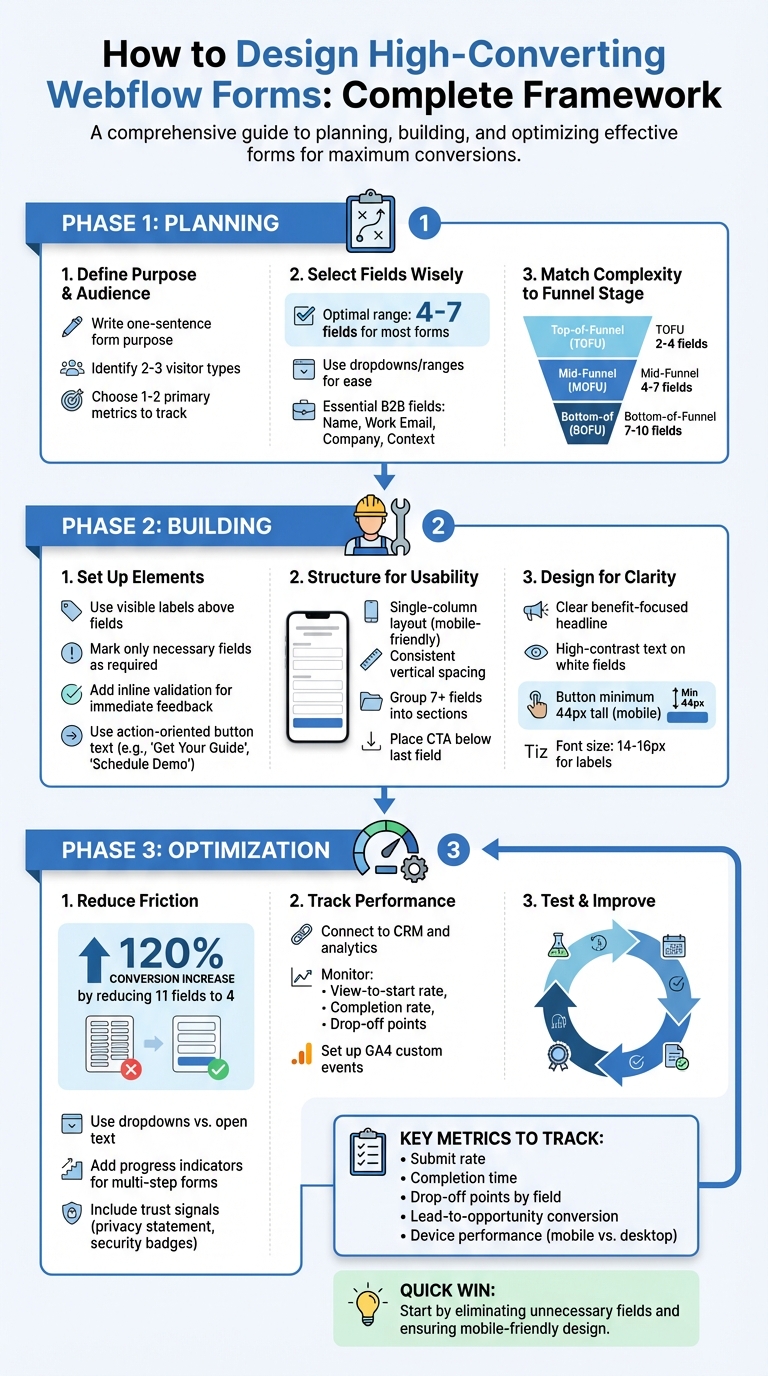
Webflow Form Optimization Framework: From Planning to Conversion
Before diving into Webflow Designer, start by drafting a clear, one-sentence purpose for your form. For instance: "This form collects marketing-qualified demo requests for our B2B SaaS product from US-based marketing managers." This simple step helps you decide on the fields, flow, and CRM integrations you'll need.
Next, outline the key metrics you’ll track. Choose 1–2 primary metrics, like submit rate, and 1–2 secondary metrics, such as completion time. The type of form you’re creating will dictate which metrics matter most. For example:
Understanding your audience is equally important. Identify 2–3 key visitor types likely to land on your form. For example, you might have a budget-owner CMO, a mid-level marketer researching options, or an agency partner. For each segment, think about their intent, preferred language, and the devices they’re using. A high-intent visitor might respond best to a headline like "Get a Webflow demo," while a researcher might prefer "Talk to a Webflow expert." US-based visitors often value transparency, so clearly state what they’ll gain and how their data will be used. For example, near your call-to-action, you could add: "We’ll follow up within 1 business day."
Once you’ve nailed down your objectives and audience, you can decide which fields are essential for qualifying leads.
Start by identifying potential qualifier fields - like role, team size, or industry - based on input from your sales team. Evaluate each field for its value versus the friction it might create. Then, simplify your options by using dropdowns or radio buttons.
For fields like budget and timeline, use ranges instead of specific numbers to make filling out the form easier. For instance, instead of asking for an exact budget, offer options like "Less than $5,000," "$5,000–$25,000," or "More than $25,000." Similarly, timeline questions can be framed more conversationally: "When would you like to start?" with choices like "ASAP," "Next 1–3 months," or "3+ months." Most conversion-focused teams aim to keep primary lead forms to 4–7 well-designed fields, saving advanced qualifiers for later stages like sales calls.
For US-based B2B lead generation, the following fields are often essential:
Depending on your funnel stage, you might also include fields for role or seniority (to help with routing), company size or revenue, and country or region (for assigning leads to specific territories). If you have optional fields, make them skippable in early-stage forms and required only on high-intent pages like pricing or "Talk to sales." Multi-step forms can also help capture partial leads if users abandon the process midway.
Once your fields are set, adjust the form’s complexity to match where the visitor is in their journey.
The complexity of your form should align with the visitor’s intent. Here’s a general rule of thumb:
For example, a conversion-focused agency might use a short 3-field form for a "Webflow performance checklist" landing page, a 6-field form for a "Conversion teardown session," and a detailed 9-field, multi-step form for a "Start a Webflow project" page. Visitors at this stage expect to provide more information.
Page context also plays a big role in determining form length. Traffic sources matter - a visitor arriving via paid keywords or nurtured email campaigns is likely to have higher intent than someone clicking from a generic social post. Similarly, the page type signals intent: pricing and comparison pages suggest readiness to buy, while blog posts are more exploratory. If your page already includes clear pricing details or US-based case studies, visitors may be more willing to fill out a detailed form to receive tailored help.
On high-traffic, low-intent pages, stick with short forms. Save longer, more detailed forms for bottom-of-funnel pages like "Migration to Webflow" or "Growth-focused redesign," where visitors are more likely to provide in-depth information.
When it comes to creating forms in Webflow that convert effectively, following a clear and user-friendly approach is key. Here's how to set up and design forms that not only look great but also encourage users to complete them.
Start by opening Webflow Designer and heading to the Add panel. From there, scroll to the Forms section and drag a Form block onto your canvas. This block includes essential elements like text fields, text areas, and controls such as checkboxes, radio buttons, and select fields. These tools make it easy to gather input from users.
Each field should have a visible label positioned above it. Labels like "First name", "Last name", and "Work email address" are essential for accessibility, helping screen readers interpret the form correctly while ensuring clarity for all users. Use placeholders only to show formatting examples, such as "e.g., jane.doe@company.com" or "(555) 555-1234." These placeholders should never replace proper labels.
In the Element settings for each field, mark only the necessary fields as required. Assign the correct input type (e.g., email, tel, number) to ensure mobile users see the appropriate keyboard, which speeds up the process. For the submit button, use action-oriented text like "Get your quote" or "Request demo." Style the button as a high-contrast primary element to make it stand out visually.
To minimize errors, add inline validation that provides immediate feedback as users move between fields. For example, display messages like "Enter a valid work email" or "This field can't be left blank" near the relevant field. For U.S. audiences, follow local conventions: use 10-digit phone fields, include a $ prefix for currency inputs, and format dates as MM/DD/YYYY in helper text or placeholders.
Once you've set up these basics, focus on arranging the form for an intuitive user experience.
A single-column layout works best for forms, allowing users to scan and complete fields from top to bottom without confusion. This is especially important on mobile devices, where multi-column forms can create frustrating horizontal scrolling and lead to higher abandonment rates. Arrange fields in a logical order, starting with contact details, followed by company information, and ending with specifics about the project or request.
Ensure there’s enough vertical spacing between fields by using consistent margin and padding values in Webflow. This spacing improves touch accuracy on mobile devices and keeps the layout clean across all screen sizes. For fields that need to appear side by side - like first and last name - make sure the layout automatically stacks vertically at tablet and mobile breakpoints to maintain readability and usability.
If your form includes seven or more fields, break it into sections with short headings like "Contact details", "Company information", and "Project scope." Use div blocks or wrappers to group related fields visually, making the form feel more manageable. Place the primary call-to-action button directly below the last input field so it’s easy to find without excessive scrolling, even on smaller screens.
With usability in place, the next step is to focus on design elements that make the form visually appealing and easy to navigate.
Begin with a clear headline above the form that highlights the benefit of completing it. For example, "Get your custom Webflow proposal" or "Schedule your free strategy call." Follow this with a short supporting line that sets expectations, such as "We'll respond within 1 business day with a tailored estimate in USD", to reassure users about the process.
Use high-contrast text on white fields with subtle borders to ensure readability. Define consistent styles in Webflow using classes for labels, inputs, and helper text, creating a cohesive and professional look across your site. Establish an input state system: neutral borders for default, highlighted borders with subtle background changes for focus, and a distinct color (like red) for errors, accompanied by clear messages.
Your submit button should use your brand's main accent color to stand out. Make it at least 44px tall on mobile devices to align with touch target standards. De-emphasize secondary links like "Cancel" or "Learn more" to keep the focus on the primary action. For labels, maintain a font size of 14–16px with generous line height to ensure readability on all devices. Finally, add hover and focus states for buttons and inputs, providing immediate feedback that builds user confidence and encourages form completion.
When it comes to creating forms that users actually complete, reducing friction is a game-changer. Even the most visually appealing and thoughtfully designed form can fall short if it feels like a hassle to fill out. The goal is to remove barriers and make the process as smooth as possible, helping to turn casual visitors into solid leads.
Here’s a striking example: reducing form fields from 11 to just 4 led to a 120% increase in conversions while cutting completion time nearly in half. For U.S. users, this means asking for only the most critical details upfront - like name, work email, company, and role. You can always gather additional information, such as budget range (in USD), team size, or project timeline, later in a multi-step process.
Simplify input wherever possible. Replace open text fields with dropdown menus, checkboxes, or radio buttons. Predefined options make it easier for users to respond quickly and reduce the chance of errors. For example, offering budget ranges in a dropdown helps users choose without second-guessing.
Stick to familiar formatting to make the process feel effortless. For U.S. users, that means using MM/DD/YYYY for dates (with a date picker or helper text), automatically formatting phone numbers like (555) 555-1234, and displaying currency with a $ symbol and commas for thousands (e.g., "$10,000"). These small details reduce mental strain and make the form feel intuitive.
For forms that require more information, consider breaking them into multiple steps instead of cramming everything into one long page. Multi-step forms are ideal for more complex needs, like lead qualification or detailed quote requests. Adding a progress indicator - such as "Step 2 of 4" or a simple progress bar - keeps users informed about their progress and encourages them to finish.
People are naturally cautious about sharing personal information online. A simple way to ease these concerns is by adding a short, clear privacy statement near the submit button. For instance, a message like, "We’ll only use your information to respond to your inquiry - no spam, ever" (with a link to your full Privacy Policy) can go a long way in building trust.
If your form collects sensitive data like payment information or confidential business details, make sure to highlight security measures. Include visible cues like a lock icon with text such as, "Secure 256-bit SSL encryption," or mention compliance with recognized standards. These details reassure users that their information is safe.
Social proof is another powerful tool. Placing client logos, a user count like "Join 5,000+ marketing teams," or a brief testimonial near the form can help reduce hesitation. Finally, let users know what happens after they hit submit. A note like, "We typically respond within 1 business day, Monday–Friday," sets clear expectations and eliminates uncertainty.
Sometimes, stepping up your form game with advanced patterns can make a big difference - if used wisely. For high-intent actions like "Request a quote" or "Start your free trial", consider using full-screen or modal forms. These isolate the task and keep distractions at bay, allowing users to focus entirely on completing the form.
Conversational or natural-language forms can also add a personal touch, but they must remain structured enough to ensure usability and accessibility. Smooth animations, such as transitions or inline validation feedback, can guide users without overwhelming them. However, always test these patterns against simpler designs to ensure they don’t inadvertently increase abandonment.
For shorter forms (three to five fields), sticking to a single-step layout often works best. Adding extra steps for such brief forms can feel unnecessary and may even frustrate users.
Experts like The Hoop Studio have mastered these techniques, crafting Webflow forms that not only look great but also convert at impressive rates.
Once you've built your optimized form, the next step is tracking its performance. Without proper tracking, you're left guessing what works and what doesn’t - hardly ideal when you're aiming to maximize conversions.
To get the most out of your forms, connect them to your CRM and analytics tools. Use native integrations, Zapier, or Make to send form submissions directly to platforms like HubSpot, Salesforce, or Airtable. At a minimum, include key details such as contact identifiers (name, email), lead qualification fields (e.g., company size, budget range), and consent flags. This allows your sales team to segment and score leads effectively.
Take it a step further by enhancing hidden fields for attribution tracking. Capture data like page paths, campaign tags, UTM parameters (utm_source, utm_medium, utm_campaign), page URLs, and referrers. Feeding this data into your CRM reveals which channels, campaigns, and landing pages generate the most valuable leads. For U.S. marketing teams, this is essential for fine-tuning ad spend and improving ROI. Additionally, set up a custom event in Google Analytics 4 (e.g., generate_lead) that triggers on successful submissions. Include parameters like form name and page path to compare how different forms and pages perform. Once this data is flowing, you can zero in on the metrics that highlight where improvements are needed.
Tracking the right metrics is key to identifying areas for improvement. Focus on:
Use tools like Google Analytics 4 conversion funnel reports or session recording platforms like Hotjar and FullStory to dig deeper. For example, if a phone number field consistently causes drop-offs, consider moving it later in the form or making it optional.
Other metrics to watch include average completion time and error rates for specific fields. If users spend too long on certain fields or frequently trigger validation errors (e.g., on date or ZIP code fields), your instructions might need clarification. Break down performance by device as well - mobile form conversions often lag behind desktop, especially for U.S. users filling out forms during commutes or off-hours. Finally, track lead quality in your CRM by measuring how many submissions turn into qualified opportunities or closed deals. This ensures you're improving not just the quantity of submissions but their overall value.
Armed with meaningful data, you can start experimenting. Begin with changes likely to have the biggest impact. For instance, reduce non-essential fields and see if that boosts completion rates without sacrificing lead quality. Or, test single-step versus multi-step layouts for complex forms like demo requests. Focus on one primary variable at a time - such as changing a CTA button from "Submit" to something more specific like "Get Pricing in 24 Hours" - and run tests long enough to gather statistically significant results.
Since Webflow doesn’t offer native A/B testing, you can create duplicate pages and split traffic using ad platform experiments or third-party tools. Tag each variant and pass its identifier to analytics and your CRM to compare submission rates, lead quality, and revenue. Agencies like The Hoop Studio often create reusable form components pre-configured with UTM fields and event tracking. They follow a monthly optimization process: reviewing reports, prioritizing hypotheses, running tests, and documenting what works for future campaigns. This approach ensures continuous improvement, reinforcing the usability and design principles established earlier in the process.
Creating high-converting Webflow forms requires thoughtful planning (only ask for what’s necessary at that stage), removing barriers (single-column layouts, real-time validation, mobile-friendly design), and consistent fine-tuning (monitoring drop-offs, testing fields and copy, and improving based on data). Forms are the critical bridge between traffic and conversions, so treat them as dynamic assets that can significantly impact your results.
Start by reviewing your current forms. Eliminate unnecessary fields, ensure labels and error messages are straightforward, and confirm that essential data for integration is being captured. Establish your baseline metrics - such as submission rates, abandonment rates, and lead quality - and commit to testing one change this week. Even small adjustments can lead to noticeable improvements in completion rates and lead volume without increasing your ad spend.
Once you’ve nailed the basics, you can explore more advanced strategies. These more complex form patterns can be effective, but only when they demonstrably improve performance. Use data to guide every change: implement, measure, and keep what works better than simpler alternatives. Make it a habit to review your forms regularly - at least quarterly. Update qualification questions based on sales feedback, and refresh design elements to align with evolving messaging. If you need additional expertise, consider working with specialists to refine your approach.
For example, a partner like The Hoop Studio can help accelerate your form optimization efforts. They specialize in building conversion-driven landing pages and marketing websites, ensuring seamless CRM and analytics integrations, and offering ongoing support to test and improve forms over time. Their clients have seen 2x conversion growth and gained 100K+ newsletter signups by treating forms as assets that continuously deliver better results with every update.
Your forms are essential tools for driving conversions. By measuring, refining, and optimizing consistently, you can generate more leads and pipeline from the same traffic. This ongoing process ensures your forms stay effective as your marketing strategies and goals evolve.
To boost conversions, stick to collecting only the most essential details for your campaign, like name, email, and phone number. Use clear, straightforward labels and avoid asking for too much information that might overwhelm users. If you'd like to gather extra details, you can include optional fields, but ensure they don’t take attention away from the primary goal.
Prioritize simplicity and usability in your form design. A clean, easy-to-use layout makes it more likely that users will complete and submit their information, helping you achieve better conversion rates.
To minimize form abandonment, keep things straightforward and user-friendly. Stick to asking for only the most necessary information - this prevents users from feeling overloaded. Use clear and concise labels that help guide users through the form with ease. Adding real-time validation is a smart move, as it helps catch mistakes immediately, saving users from frustration.
Design matters too. Ensure the form is visually clean and simple to navigate, and make sure it works smoothly on mobile devices - a must in today’s mobile-first world. Quick loading times are also key to keeping users engaged. Lastly, build confidence by including privacy statements or security badges to show users that their data is protected.
To keep tabs on how well your Webflow forms are performing, consider integrating tools like Google Analytics or taking advantage of Webflow’s built-in form tracking features. Keep an eye on important metrics such as submission rates, abandonment rates, and user behavior - these can help you pinpoint any areas that might need improvement.
Another approach is to run A/B tests. Experiment with different aspects of your form, like its design, how fields are arranged, or even the number of fields you ask users to fill out. Regularly analyze the data and make small, incremental tweaks to see what works best. Above all, aim to keep your forms simple, clear, and easy to use - this is key to boosting conversions and ensuring a better user experience.