






Insights
Webflow
Copy Link




Use Webflow's auto-generated sitemap, control indexing and robots.txt, submit to search engines, and keep your sitemap updated for better crawling.
Creating an SEO-friendly sitemap in Webflow is simple and effective for improving your site's visibility in search engines. A sitemap helps search engines like Google locate and crawl your website's pages efficiently, ensuring your content gets indexed faster. Here's a quick breakdown of what you need to do in Webflow:
sitemap.xml) whenever you publish changes.robots.txt by default, but you can customize it if needed.These steps ensure your website is easy for search engines to navigate, improving its chances of ranking in search results. Read on for detailed instructions tailored to Webflow users.
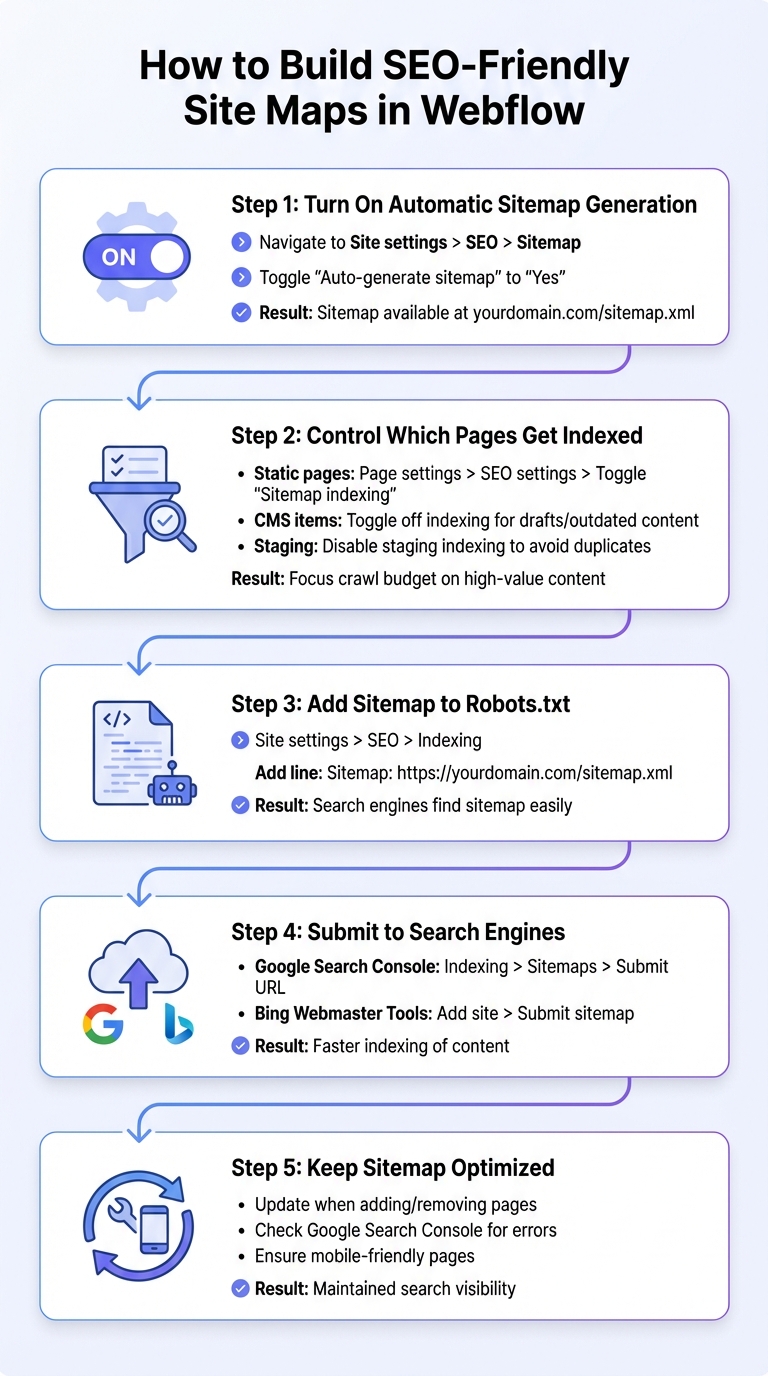
5-Step Process to Build SEO-Friendly Sitemaps in Webflow
Webflow takes care of creating a sitemap.xml file for your site automatically and updates it every time you publish changes. Think of this file as a roadmap for search engine crawlers, helping them navigate your site's pages efficiently. The best part? You don't need to do anything manually - Webflow refreshes the sitemap with each update, ensuring search engines always have the latest version of your site. This can help with quicker indexing and better visibility in search results.
If your site supports multiple languages, Webflow includes hreflang tags in the sitemap. These tags signal the language and region options available for your content. Plus, Webflow automatically adds your sitemap's URL to the robots.txt file, making it easy for search engines to find.
Here's how you can enable this handy feature in your Webflow dashboard.
To turn on automatic sitemap generation, go to your Webflow dashboard and follow these steps:
Once published, your sitemap will be available at yourdomain.com/sitemap.xml.
Not every page on your site needs to show up in search results. Pages like utility pages, duplicates, or low-priority content can waste your crawl budget and weaken your site's ranking potential. By managing which pages are indexed, you let search engines focus on your most important and high-value content. Here's how you can fine-tune these settings in Webflow.
Webflow makes it easy to exclude pages from being indexed. For static pages, open the specific page, go to Page settings > SEO settings, and toggle Sitemap indexing to "off." This action adds a noindex meta tag to the page and removes it from your sitemap.
For CMS collection items, you can achieve the same result by opening the item and toggling off the Sitemap indexing option. This is especially handy for things like draft content, outdated events, or discontinued products - none of which need to appear in search results.
To prevent your staging domain from being indexed, head to Site settings > SEO > Indexing and disable staging indexing. This ensures search engines don’t pick up duplicate content from your staging and live domains, which could negatively impact your rankings.
Duplicate content can split your traffic and weaken your rankings. E-commerce sites often face this issue due to faceted navigation, where filtered category pages generate multiple, nearly identical URLs.
To avoid this, exclude pages that redirect elsewhere, admin pages behind password protection, 404 error pages, and any content that’s thin or outdated. For pages accessible via multiple URLs, use a rel=canonical tag to point search engines to the primary version of the page. In Webflow, you can add this tag either in the <head> section using custom code or through the canonical link field in Collection Templates.
Make sure your sitemap only includes canonical URLs. Avoid listing pages with non-self-referencing canonical tags, as they can confuse search engines. Regularly audit your site to identify and clean up duplicate content for better performance.
Including your sitemap in the robots.txt file is a simple way to improve how search engines crawl your site. Think of robots.txt as a rulebook for search engine bots, telling them how to interact with your website. By adding your sitemap URL here, you’re essentially giving crawlers a roadmap to your content, making it easier for them to find key pages - especially those buried in deeper sections of your site.
While it’s possible to submit your sitemap directly through tools like Google Search Console, adding it to robots.txt provides an extra layer of visibility. This small step can help ensure search engines index your Webflow site more effectively.
Webflow automatically includes your sitemap.xml in robots.txt if you enable auto-generation. But if you need to customize the file - maybe for a more advanced setup or to add a custom sitemap URL - here’s how you can do it:
Sitemap: https://yourdomain.com/sitemap.xml
This custom entry will replace the default configuration. Once you’ve made your changes, save and publish your updates. To ensure everything is working correctly, use the Google Search Console robots.txt tester. This will help confirm that search engines can read your instructions and easily locate your sitemap.
After your sitemap is live and included in your robots.txt file, the next step is to submit it directly to search engines. While search engine crawlers will eventually find your sitemap on their own, manually submitting it can speed up the indexing process. This is especially helpful for new sites or when you've recently added new content that you want to show up in search results quickly.
Both Google and Bing provide tools to make sitemap submission easy. By submitting your sitemap to these major search engines, you improve your site's visibility and help them discover your content more effectively.
If you're using Webflow, your sitemap URL will be located at yourdomain.com/sitemap.xml once you've enabled automatic sitemap generation and published your site. Copy this URL - you’ll need it for submission on both platforms.
Here’s how to submit your sitemap using Google Search Console and Bing Webmaster Tools.
yourdomain.com/sitemap.xml) and click "Submit."
Keeping your sitemap up to date is crucial as your site grows and changes. An updated sitemap ensures search engines can quickly find new content while removing outdated pages that might hurt your rankings.
If you're using Webflow, the platform's auto-generate sitemap feature handles updates automatically. However, you'll need to tweak indexing settings and republish your site when adding or removing pages.
For static pages, navigate to Page settings > SEO settings and toggle Sitemap indexing on or off based on whether you want the page included. For CMS items, open the specific item in your Collection, head to Item details, and adjust the Sitemap Indexing setting. Keep in mind that disabling a page in your robots.txt file doesn’t remove it from Webflow’s auto-generated sitemap - you’ll still need to use the Sitemap indexing toggle.
Once you've made changes, check Google Search Console to catch any immediate issues.
After updating your sitemap, it's a good idea to monitor your site's status. Google Search Console can help you spot crawl errors, non-indexed pages, and broken links. These reports provide detailed insights into pages from your sitemap that Google might be struggling to access.
Additionally, keep an eye on Core Web Vitals (like LCP, FID, and CLS) in Search Console. While these metrics aren't directly tied to sitemap errors, poor performance can impact how Google evaluates and ranks your listed pages.
Since Google prioritizes mobile-first indexing, it primarily evaluates your mobile site when determining rankings. Every page linked in your sitemap must be mobile-friendly to avoid penalties. Use the mobile usability reports in Google Search Console to find and resolve any mobile-related issues.
Setting up automatic sitemap generation, managing page indexing, adding your sitemap to the robots.txt file, and submitting it to search engines are key steps to ensure your site gets crawled and indexed efficiently. Make it a habit to update your sitemap whenever your site changes, keep an eye on Search Console for crawl errors, and revisit mobile-friendly practices from Step 5.
But don’t stop there - SEO is never a one-and-done task. Keeping your sitemap in top shape plays a big role in improving your site's visibility as search features evolve. Submitting your sitemap to both Google Search Console and Bing Webmaster Tools ensures your content is discoverable across major search platforms.
"SEO is an ongoing process, a conversation between your site and search engines that evolves with every algorithm update and every piece of content you publish".
Think of your sitemap as the starting point of that conversation, making sure search engines always have a clear and current map of your website's content.
Webflow’s auto-generated sitemaps take the hassle out of keeping your XML sitemap current. They automatically list all your published pages, ensuring everything is up-to-date. If your website supports multiple languages, these sitemaps also include hreflang tags, which help search engines index and display your localized content accurately.
This setup enhances your site's crawlability, making it easier for search engines to find and rank your pages. The result? Better visibility and improved search performance.
If you want to stop search engines from indexing certain low-priority pages in Webflow, you have a few options. First, you can turn off the Sitemap indexing feature in the page settings. Another method is to add a noindex meta tag to the page's code. For an extra layer of control, include a Disallow rule in your robots.txt file to prevent search engines from crawling these pages entirely. And if any of these pages have already been indexed, you can use Google's removal tool to request their removal from search results.
Manually submitting your sitemap is a smart way to make sure search engines know about all the pages on your website. This approach speeds up the indexing process, so you’re not left waiting for search engine crawlers to stumble upon your pages naturally - a process that can sometimes drag on.
When you submit your sitemap, you’re essentially giving search engines a clear map of your site’s structure. This makes it easier for them to navigate your content and determine how to rank it in search results. It’s a simple step that can have a meaningful impact on your site’s visibility.