




Insights
SEO & GEO
Copy Link




Learn how to write concise, accessible image alt text that improves SEO, aids screen readers, and avoids common mistakes for better discovery.
Image alt text serves two key roles: improving accessibility for visually impaired users and boosting your website's SEO. By providing clear, concise descriptions of your images, you can help screen readers convey meaningful information and make your content more discoverable in search engines like Google.
Here’s what you need to know:
alt="" to skip them for screen readers.Optimizing your alt text can lead to better user experiences, improved compliance, and even increased organic traffic - HubSpot saw a 779% boost in image search traffic by refining their alt text strategy.
Let’s break down how to write effective alt text and avoid common pitfalls.
Alt text should be short and to the point - ideally under 125 characters, as many screen readers stop reading beyond this limit. While some guidelines suggest extending it to 140 or even 150 characters, brevity is usually the best approach.
Think of alt text as a quick caption for someone who can't see the image. It should provide enough detail to paint a clear picture without unnecessary words. A simple way to test this is to have someone read your alt text aloud. If they can easily imagine the image, you've done it right.
Always lead with the most important details so users can grasp the essence of the image immediately. For example, instead of writing, "A photograph showing a golden retriever puppy playing with a red ball on grass", simplify it to "Golden retriever puppy playing with a red ball on grass."
Context plays a big role in crafting effective alt text, so let's dive into that next.
The same image might need different alt text depending on where it appears and why it's being used. For example, a company logo on a homepage might simply use "Home" as its alt text, since it functions as a navigation link. However, on a brand guidelines page, the alt text should describe its visual elements, such as colors, shapes, and typography.
"The context of an image and the author's intention for including it determine what the alt text should say."
Images typically fall into three main categories: informative, functional, and decorative. Informative images add new details or context, while functional ones, like buttons, trigger actions. For functional images, describe the action rather than the appearance. For instance, a magnifying glass icon should be labeled "Search."
Decorative images, on the other hand, require a different approach.
Not all images need descriptive alt text. Decorative images - such as borders, spacers, or purely aesthetic elements - should use an empty alt attribute (alt=""). This tells screen readers to skip over them entirely.
A good rule of thumb is the "delete test": if removing the image doesn't affect the meaning or if nearby text already explains it, use an empty alt attribute.
Even for decorative images, always include the alt attribute (even if it's empty). This prevents screen readers from reading out unhelpful file names like "IMG_4523.jpg".
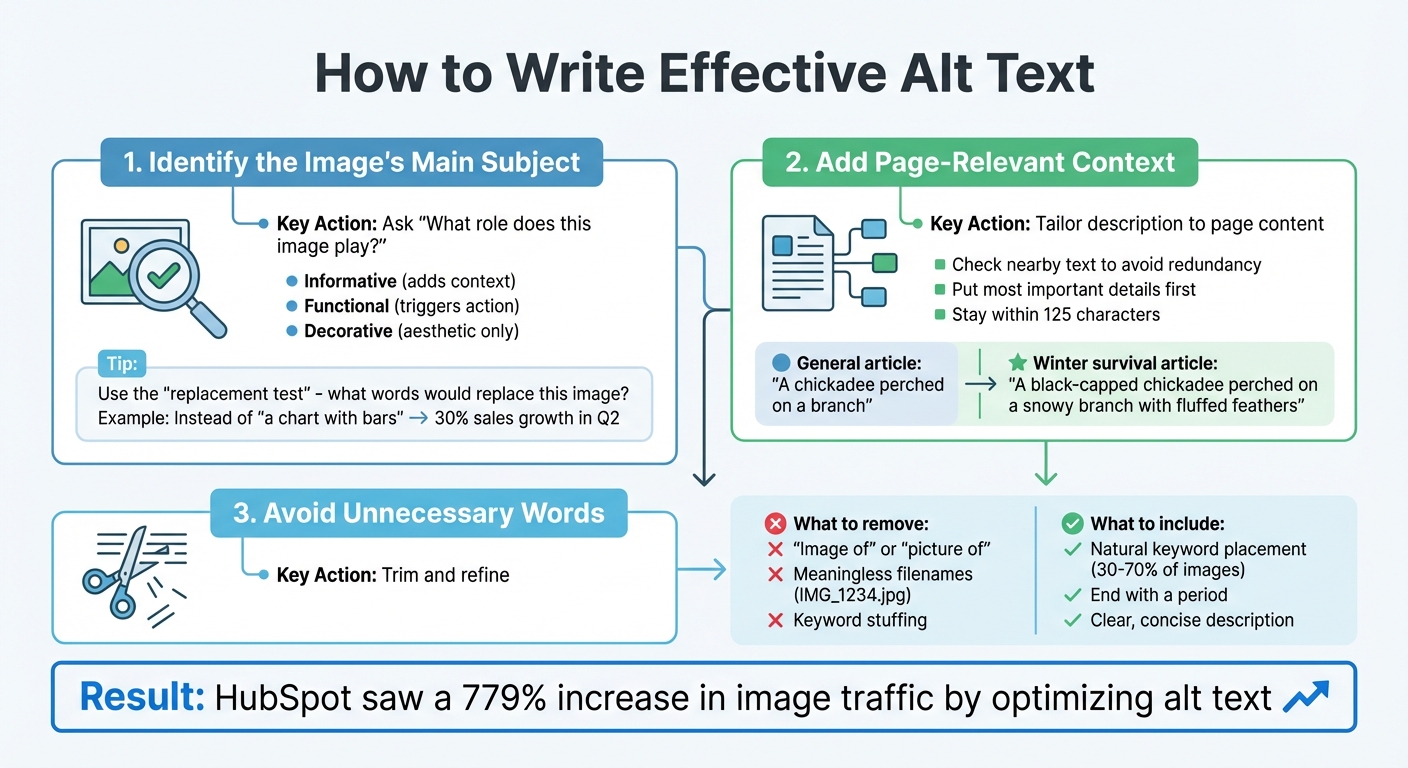
Step-by-step guide to writing effective image alt text for SEO and accessibility
Start by asking yourself, "What role does this image play?" This question helps you zero in on its purpose. Is it providing new information, functioning as part of an action (like a button), or simply there for decoration? Understanding this will shape how you describe it.
A helpful trick is the "replacement test." Think about what words you would use if the image were removed. For instance, instead of describing a bar chart as "a chart with bars", focus on the key takeaway, like "30% sales growth in Q2." This approach ensures your description highlights the image's unique contribution to the content.
Once you've identified the image's subject, tie it back to the surrounding content for added relevance.
The same image can require different alt text depending on where it appears. For example, a photo of a chickadee might be described as "A chickadee perched on a branch" in a general article about bird species. But in a piece about winter survival, a more fitting description could be, "A black-capped chickadee perched on a snowy branch with fluffed feathers."
Check the nearby text to avoid redundancy. If the surrounding content already mentions certain details, focus your alt text on complementary information. For example, instead of writing "Image of a professor pointing to a student's computer screen" in a business school article, you could say, "Business school professor pointing to a student's computer screen during a lecture."
Keep the most important details upfront in your alt text. This helps screen reader users quickly grasp its relevance. Aim to include context-heavy information first, followed by additional specifics, all within the recommended 125-character limit.
Adding this level of context not only improves accessibility but can also enhance your page's SEO.
When finalizing your alt text, trim any unnecessary phrasing to keep it concise and clear.
There's no need to include phrases like "image of" or "picture of", as screen readers already indicate that it's an image. Instead of saying, "An image of a golden retriever puppy", go straight to the point: "Golden retriever puppy playing with a red ball." Similarly, avoid meaningless file names like "IMG_1234.jpg" - they add no value.
Steer clear of keyword stuffing as well. Overloading your alt text with fragmented keywords can disrupt the user experience and may even hurt your SEO rankings.
Lastly, end your alt text with a period.
For example, HubSpot's blog team applied these principles in 2018 as part of their SEO strategy. By optimizing image alt text, they saw a staggering 779% increase in image traffic within a year, resulting in 160,000 additional organic views.
Incorporating keywords into alt text can boost SEO, but only when done naturally. Google explicitly advises against keyword stuffing, warning:
"Avoid filling alt attributes with keywords (also known as keyword stuffing) as it results in a negative user experience and may cause your site to be seen as spam".
A good rule of thumb? Include focus keywords in about 30% to 70% of your images, as recommended by Yoast SEO. This range strikes a balance between improving search visibility and maintaining a positive user experience. For instance, if your page is about "waterproof trail running shoes", an alt text like "Men's waterproof trail running shoes in navy blue" integrates the keyword naturally while still being descriptive.
Positioning primary keywords at the beginning of the alt text is another effective strategy. Since screen readers and search engines prioritize the first few words, this approach ensures the image's relevance is immediately clear. For e-commerce sites, including the full product name and SKU can improve search discoverability.
This keyword approach works best when paired with other supportive image elements, as explained below.
Alt text becomes even more effective when reinforced by related elements like filenames, captions, and surrounding text. These cues work together to send consistent signals to search engines. For example, if your alt text reads, "Business school professor pointing to a student's computer screen during a lecture", ensure the filename complements it - something like business-professor-lecture.jpg works far better than a generic name like IMG_1234.jpg.
Google highlights this connection:
"Google uses alt text along with computer vision algorithms and the contents of the page to understand the subject matter of images".
Captions add another layer of context, offering visible information that complements the alt text. Just avoid duplicating the exact wording of the alt text to keep the content fresh and engaging.
Consistently aligning alt text with these supporting elements not only enhances SEO but also provides clarity for users and search engines alike.
Beyond SEO, alt text plays a critical role in accessibility. In the United States, providing proper alt text isn’t just a good practice - it’s a legal obligation. Under WCAG 1.1.1, all non-text content must have text alternatives, a requirement also enforced by the Americans with Disabilities Act (ADA).
With approximately 12 million internet users in the U.S. experiencing visual impairments, keeping alt text concise - between 80 and 125 characters - is crucial, as screen readers often truncate longer descriptions. For decorative images that don’t convey meaningful information, use an empty alt attribute (alt="") so screen readers can skip them.
Ensuring compliance with these standards isn’t just about avoiding legal trouble - it’s about creating an inclusive, user-friendly experience for everyone.
Crafting high-quality alt text is essential for improving SEO and ensuring a smooth experience for all users, including those relying on screen readers.
Even seasoned professionals can slip up when it comes to alt text. One of the most frequent errors is keyword stuffing - for instance, writing "SEO, SEO strategy, SEO tools image." This approach not only risks being flagged as spam but also creates a frustrating experience for users relying on screen readers.
Another common misstep is using vague descriptions like "Product image." These add little to no value, leaving search engines and visually impaired users without meaningful context. Aim to keep alt text under 125 characters to ensure it’s concise and user-friendly. The numbers tell the story: a staggering 97.4% of homepages have accessibility issues, with missing or poor alt text being the culprit in 61% of cases.
Ignoring context is another pitfall. The same image might need different alt text depending on its purpose. For example, a photo of a building might highlight architectural details on an architecture blog but focus on location specifics for a travel site. Decorative images are another area where errors occur - if they don’t serve a functional purpose, use an empty alt attribute (alt="") to avoid screen readers announcing irrelevant filenames, which can disrupt the user’s flow.
To avoid these mistakes, stick to clear editorial standards that prioritize accessibility and clarity.
Creating a style guide for alt text is a simple yet effective way to maintain consistency. For instance, the guide can recommend a character range of 80 to 140 characters and emphasize placing the most crucial details at the beginning of the description. Always conclude alt text with a period for proper screen reader processing.
The guide should also discourage practices like using all-caps (which screen readers might misinterpret as acronyms) and listing unstructured keywords. For icons or buttons, focus on describing the action - such as writing "Search site" instead of "magnifying glass." Regular audits using tools like the Alt Text Tester Chrome extension or MozBar can help identify and resolve issues, especially on high-traffic pages where improvements are most impactful.
Here’s a quick reference table contrasting poor and effective alt text examples to solidify best practices:
| Image Type | Poor Alt Text | Good Alt Text |
|---|---|---|
| Product Photo | alt="shoes" |
alt="Men's waterproof hiking boots in forest green" |
| Action Icon | alt="magnifying glass" |
alt="Search site" |
| Brand Logo | alt="logo.png" |
alt="The Hoop Studio logo" |
| Chart/Graph | alt="sales chart" |
alt="Bar chart showing a 23% increase in Q3 revenue" |
| Decorative Border | alt="blue line" |
alt="" |
| Action Shot | alt="Baseball player hitting a ball" |
alt="David Ortiz of the Boston Red Sox batting at Fenway Park" |
This table highlights how thoughtful alt text can make a world of difference, ensuring accessibility while enhancing SEO.
Writing effective alt text is all about clarity and intent. It plays a dual role: improving accessibility for the 2.2 billion people globally with vision impairments and giving search engines the context they need to properly index your content. Done well, optimized alt text can significantly boost image search traffic and organic visibility.
Keep your alt text short and to the point - aim for 80–140 characters. Prioritize the most important details at the beginning, skip redundant phrases, and always end with a period to ensure smooth processing by screen readers. Remember, the same image might need different descriptions depending on its purpose and where it appears on the page.
Incorporate keywords in a natural way. Google itself highlights the importance of alt text, stating:
"Google uses alt text along with computer vision algorithms and the contents of the page to understand the subject matter of images".
For functional images, like buttons, focus on describing the action (e.g., "Submit form"). For purely decorative images, leave the alt attribute empty (alt="") to avoid unnecessary interruptions for screen reader users.
Treat alt text as an essential part of your editorial process. With accessibility errors present on 97.4% of homepages and missing alt text accounting for 61% of those issues, getting it right sets your site apart. Thoughtful alt text enhances user experience, improves accessibility, and strengthens your site's search performance.
Alt text for images plays an important dual role. First, it helps search engines better understand and index your images, which can enhance your site's SEO performance. Second, it ensures that users who rely on screen readers can access and engage with your content, making your site more inclusive.
To write effective alt text, focus on providing a clear, concise description of the image while naturally incorporating relevant keywords. Avoid overloading the text with keywords, as this can hurt both user experience and SEO. A thoughtful approach not only improves search visibility but also ensures your content is accessible to everyone.
When crafting alt text, steer clear of these frequent missteps that can undermine both accessibility and SEO:
By steering clear of these errors, you can write alt text that boosts accessibility and strengthens your image SEO.
When dealing with images that are purely decorative or don't add meaningful content to a page, it's best to use an empty alt attribute (alt=""). This allows screen readers to skip over these images, making the experience smoother for users who depend on assistive technologies.
Decorative images might include things like background patterns, spacer graphics, or ornamental visuals that don’t contribute any important context or information to the content.