





Insights
SEO & AEO
Copy Link




Step-by-step on-page SEO for new Webflow sites: optimize meta titles/descriptions, headings, images, internal links, and mobile speed to boost visibility.
Launching a new website on Webflow? Here’s the deal: without proper on-page SEO, even the best-looking site might not show up in search results. This guide breaks down actionable steps to optimize your site for search engines and users alike. From crafting keyword-rich meta titles to improving mobile performance, these tips will help you build a solid SEO foundation.
Key Takeaways:
Webflow provides built-in tools to simplify these tasks, like an SEO settings panel, image compression, and an Audit Panel to catch common errors. By following these steps, you’ll improve your site’s visibility, user experience, and long-term growth potential.
Meta tags are a key part of on-page SEO and tie into the broader optimization strategies we've discussed. These tags - specifically meta titles and descriptions - are the first impression users get when your site pops up in search results. They need to catch attention and clearly communicate what your page is about. Keep in mind, Google often rewrites titles in search results, so nailing them early is essential.
In Webflow, you can manually enter your meta titles and descriptions through the SEO settings in the Page panel. Once that's set, focus on refining your meta titles to make your pages stand out.
Start by placing your main keyword at the very beginning of the title. Follow it with your brand name, separated by a dash or vertical bar - search engines prioritize the first few words. Aim to keep titles between 50 and 70 characters. This range helps avoid truncation and reduces the likelihood of Google rewriting them.
If you're using Webflow's "Generate" feature to create titles, double-check them to ensure they align with your brand's tone and message. For CMS Collection pages, dynamic fields like "Post Title" can automatically generate unique, keyword-rich titles for each item. Avoid repetitive or generic phrasing - every title should feel distinct.
Consider using action-oriented words like "How to", "Guide", or "Best" to reflect common search queries and make your titles more clickable.
Once your meta titles are optimized, shift your focus to crafting effective meta descriptions.
Think of meta descriptions as the ad copy for your page. They summarize your content and aim to persuade users to click through. A compelling description can increase your click-through rate, which indirectly benefits your SEO. This is a critical component of broader Webflow SEO strategies for lead generation. Keep your descriptions between 150 and 160 characters to avoid getting cut off.
"Meta descriptions can prompt people to click through to visit your site, especially if the description is relevant to your page's content." - Webflow
Write in full, natural sentences and include your primary keyword in a way that feels organic. Avoid stuffing in keywords excessively, as that could lead to penalties from Google. Highlight what makes your page stand out - whether it's a unique feature, benefit, or solution.
You can add or update meta descriptions in Webflow's SEO settings panel. After publishing changes, search engines will need time - sometimes days or weeks - to re-index your updated metadata.
Organizing your headings properly isn't just about making your content look good - it’s also a key factor in improving SEO and user experience. Heading tags (H1 through H6) help structure your content for search engines while allowing users to quickly scan your page. When used correctly, they create a clear hierarchy that benefits both search engines and readers. This structure also enhances accessibility for screen readers and other assistive technologies.
You don’t need to write code to manage heading tags. In platforms like Webflow, you can easily assign H1 through H6 tags using the Tag dropdown in the Element Settings panel. Additionally, tools like the built-in Audit Panel can catch mistakes, such as skipping heading levels (e.g., jumping from H2 to H4 without an H3).
"Styling text to look like a heading without setting the correct tag won't help SEO. Proper headings improve SEO, readability, and accessibility." - Webflow University
One frequent error is using heading tags solely for visual purposes, like increasing text size. If you want a large title for design reasons but it doesn’t need to be a top-level heading for SEO, use a CSS class instead. This keeps your semantic structure intact while giving you the design flexibility you need.
A well-thought-out heading structure lays the foundation for optimizing your content’s visibility and readability.
Each page should have exactly one H1 tag, and it should include your primary keyword while clearly reflecting the page’s main topic. This tag should align closely with your meta title to ensure consistency for users arriving from search results.
In Webflow, assigning an H1 tag is as simple as selecting a heading element and using the Tag dropdown. Before publishing, use the Audit Panel to check for issues like multiple H1 tags or missing ones - either mistake can negatively affect your SEO.
Once your H1 is in place, focus on organizing your content with H2 and H3 tags for a logical structure.
After setting your H1, use H2 tags for major sections and H3 tags for subsections within those sections. This creates a structured outline that’s easy for both readers and search engines to follow. Make sure not to skip heading levels, as this can disrupt the logical flow of your content.
Incorporate related keywords into your H2 and H3 tags to give search engines a better understanding of your content’s focus. Breaking your content into smaller, well-organized sections with subheadings not only improves readability but also helps search engine bots index your page more effectively.
Images are a key part of your website. They not only make your content more engaging but also play a role in your site's SEO. That said, images can be one of the biggest contributors to page size, which directly affects Core Web Vitals and search rankings. Striking the right balance between visual quality, speed, and accessibility is crucial. Properly optimized images can help prevent layout shifts and improve your CLS (Cumulative Layout Shift) scores.
Webflow makes this process easier with its built-in image compression tools. Let’s dive into how you can optimize images and write effective alt text for better performance.
"The most important attribute when it comes to providing more metadata for an image is the alt text (text that describes an image), which also improves accessibility for people who can't see images on web pages."
– Google Search Central
Beyond basic image optimization, writing good alt text is essential for both accessibility and SEO. Alt text helps search engines understand your images and supports users relying on screen readers or dealing with low-bandwidth connections. In Webflow, you can define alt text globally in the Asset Manager as a default description, which can be customized for specific pages when needed.
When crafting alt text, keep it short - 125 characters or fewer - and make sure it clearly describes the image in the context of your content. Avoid generic phrases like "image of" or "picture of", as screen readers already identify images. For functional images, such as buttons, focus on describing their purpose rather than their appearance. For example, say "Search button" instead of "Magnifying glass".
"Alt text should not just describe the image, but provide context on how the image relates to the page content."
– Harvard University
If relevant, you can naturally incorporate primary keywords into your alt text, but avoid overloading it with keywords. For decorative images that don’t add meaningful information, mark them as "decorative" in Webflow's settings so screen readers can skip them. To ensure no image is overlooked, use Webflow's Audit Panel to identify images missing alt text, though it won't check images in Lightbox elements or CMS-bound images.
Once your alt text is in place, the next step is to optimize file sizes for faster loading.
Webflow simplifies image compression by allowing you to convert JPEG, JPG, and PNG files into WebP or AVIF formats directly in the Assets panel or CMS Collections. AVIF files, in particular, offer impressive compression, reducing file sizes by up to 50% compared to JPEG and PNG without sacrificing quality. For optimal performance, aim to keep image file sizes under 150kb.
To compress images, select up to 100 files in the Assets panel and click "Compress" to convert them into your chosen format. Don’t forget to republish your site for the changes to take effect.
Note: Avoid compressing images intended for Open Graph (social sharing) into WebP or AVIF formats, as platforms like LinkedIn don’t support these for link previews.
Webflow also enables lazy loading by default, which delays image loading until they are about to appear in the viewport - saving bandwidth during the initial page load. For important images, such as those in hero sections, switch to "Eager loading" to ensure they load immediately. Additionally, always set explicit width and height attributes in your image settings to prevent layout shifts and further improve your Core Web Vitals scores.
Internal links are the connections between pages on your website. They work hand-in-hand with meta tags, headings, and image optimizations, helping search engines understand your site's layout while guiding visitors to related content. These links also spread link equity - the ranking power that strengthens the authority of your most critical pages. A well-thought-out internal linking strategy not only keeps users engaged by lowering bounce rates but also supports search crawlers in discovering and indexing your content. This creates a foundation for better navigation and improved SEO, as we'll explore further.
Improving your internal linking and navigation helps search engines access your site more effectively, boosting crawlability and enhancing your technical SEO performance.
"Internal links allow search engines to discover and prioritize content across your site. They also improve navigation by guiding visitors to related pages."
– Webflow Team
To maintain a user-friendly structure, ensure every key page on your site is accessible within three clicks from your homepage. Avoid "orphan pages" - those with no internal links pointing to them - as they are hard for search engines to find and rank. Using tools like Webflow's Navbar component can help you create consistent navigation that connects to your important pages site-wide.
Anchor text plays a crucial role in signaling to both users and search engines what lies ahead when a link is clicked. Always use descriptive, keyword-rich text that accurately reflects the destination page. Avoid generic phrases like "click here" or "read more". For instance, if you're linking to a page about Webflow's responsive design features, opt for "mobile-first design in Webflow" over vague terms.
By aligning your anchor text with the target page's primary keyword, you strengthen its relevance in search rankings. Place links naturally within your content, ensuring they fit seamlessly into the flow of your discussion.
Clear anchor text is just the beginning. Consistently linking to cornerstone pages - like your main service or product pages - reinforces their authority and signals their importance to search engines. This practice can significantly boost visibility. For example, Ahrefs saw a dramatic increase in organic traffic to their "Backlink Checker" page, jumping from 18,000 to 215,000 monthly visits, simply by improving internal links and adding contextual connections from related content.
When publishing new content, link to it from relevant existing pages, and include links from the new page back to high-authority resources on your site. Blog posts are particularly effective for linking to product or service pages, transferring informational authority to these transactional pages. Combining these strategies with your on-page SEO efforts creates a unified optimization plan. Regularly check for broken links and use 301 redirects to maintain link equity when URLs change.
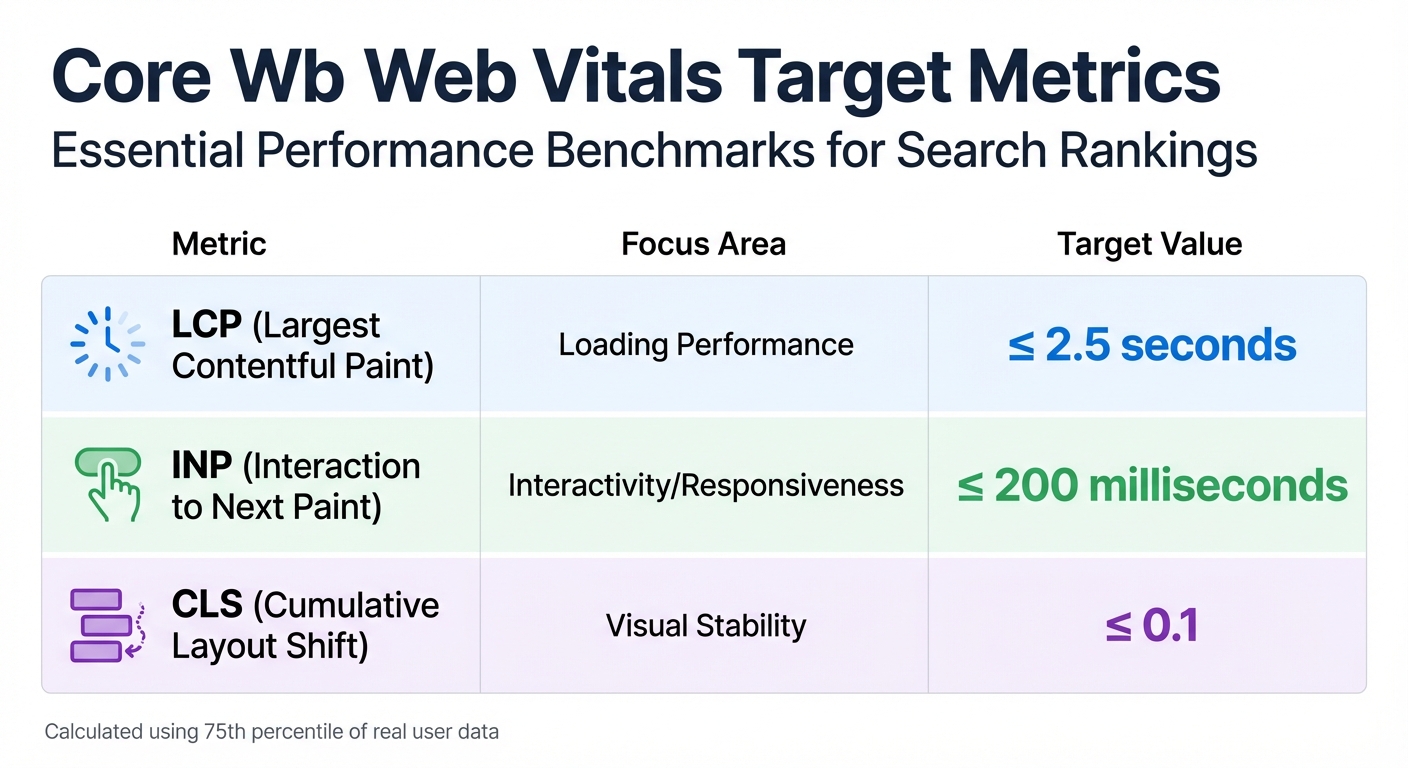
Core Web Vitals Target Metrics for SEO Performance
Google relies on mobile-first indexing to evaluate and rank websites, prioritizing how they perform on mobile devices. With mobile usage making up roughly 60% of organic search traffic, a slow or poorly optimized mobile experience can seriously impact your rankings. These mobile optimizations also tie directly into your Core Web Vitals and overall page speed.
Core Web Vitals are a set of metrics Google uses to gauge loading speed, interactivity, and visual stability, and they play a role in search rankings. These metrics focus on three essential aspects:
Google calculates these metrics using the 75th percentile of real user data, ensuring they reflect actual user experiences.
| Metric | Focus Area | Target Value |
|---|---|---|
| LCP | Loading Performance | ≤ 2.5 seconds |
| INP | Interactivity/Responsiveness | ≤ 200 milliseconds |
| CLS | Visual Stability | ≤ 0.1 |
Webflow makes it easy to check how your site looks on different screen sizes with its built-in preview tools. Use the breakpoint controls to test designs across various resolutions, going as small as 320px. This helps you spot and fix issues like overlapping elements, cramped text, or buttons that are too small to tap. Adjust styles at each breakpoint to ensure your site remains accessible and visually stable on all devices.
For deeper insights, use tools like Google Search Console's Mobile Usability report and PageSpeed Insights to identify problems such as incorrect viewport settings or touch elements that are too close together. Webflow's Audit panel is another handy tool for catching mobile layout or accessibility issues before publishing. Regular testing ensures fast load times and stable layouts, both of which are key to maintaining strong Core Web Vitals.
To improve your Core Web Vitals scores, start by converting JPEG and PNG images to modern formats like WebP or AVIF using Webflow's Image Conversion tool. AVIF, for example, can shrink file sizes by up to 50% without losing quality. For better performance, set above-the-fold images to eager loading and use lazy loading for images below the fold.
Reserve space for images by assigning explicit width and height attributes. This prevents layout shifts during loading. Additionally, enable minification for HTML, CSS, and JavaScript in your Project Settings under the Advanced Publishing tab to remove unnecessary code and reduce file sizes. Finally, take advantage of Webflow's hosting on AWS and the Fastly CDN, which naturally enhances your site's speed.
On-page SEO forms the backbone of your website's long-term visibility and growth. From crafting keyword-rich meta titles and writing descriptive alt text to structuring a clean heading hierarchy and optimizing for mobile-first indexing, every detail plays a role in helping search engines understand and rank your content. But laying a solid foundation is just the beginning.
Search engines like Google are constantly evolving, with algorithm updates that emphasize helpful, original content and better user experiences. According to Google's helpful content system, content that genuinely meets user needs tends to perform well, while outdated or irrelevant material struggles to maintain its position. This means ongoing effort is essential to stay ahead. Even high-performing content can lose traction over time, and technical changes or new additions to your site can introduce issues like broken links or crawl errors.
To keep your site running smoothly, conduct regular audits - either monthly or quarterly. These reviews can help you identify missing alt text, skipped heading levels, or other technical hiccups. Tools like Webflow's built-in Audit Panel and the Google Site Tools app, which integrates Search Console and Analytics data into the Webflow Designer, make it easier to monitor your performance without juggling multiple platforms. Additionally, Webflow Optimize allows you to run A/B tests on headings and call-to-action elements, helping you refresh older pages with updated trends and keywords to stay relevant.
Frequent audits also uncover content gaps, giving you the opportunity to make strategic updates and maintain your authority in search rankings.
To fine-tune your meta titles and descriptions in Webflow, head over to the Pages panel. From there, open the Page Settings and locate the SEO Settings section. Here, you can craft a unique, keyword-focused title for each page - aim to keep it under 60 characters. Pair it with a meta description that’s around 150–160 characters, ensuring it’s both descriptive and aligned with the page’s content. Including relevant keywords will help improve your visibility in search results.
Your meta title and description often serve as a user's first impression in search results. Make them clear, engaging, and informative to encourage more clicks.
To improve both SEO and accessibility, begin with a single, descriptive <h1> tag that clearly represents the primary topic of your page. Follow this with subheadings like <h2> through <h6>, arranged in a logical and hierarchical order without skipping levels. Each heading should accurately reflect the content of its section. This approach not only helps search engines better understand your page's structure but also makes navigation smoother for screen readers, enhancing usability for everyone.
To improve SEO and speed up load times, take advantage of Webflow’s image conversion tool. This allows you to compress image files and convert them into modern formats like WebP or AVIF, which are more efficient. Make sure your images are properly sized to fit their containers - this prevents loading oversized files unnecessarily. Don’t forget to include descriptive and relevant alt text to enhance accessibility and help search engines grasp the image content. Lastly, activate lazy loading so off-screen images only load when they’re needed, cutting down on the initial page load time.