






Insights
Webflow
Copy Link




Use a CMS when design-driven marketing sites need fast, non-developer updates—avoid it for complex, high-volume, or relational backends.
Webflow CMS is a design and content management tool that simplifies creating and updating dynamic websites. It’s ideal for projects with managing dynamic content, multi-section sites needing consistent updates, or teams wanting to manage content without developer reliance. However, it’s less suitable for small, static sites, complex relational databases, or high-volume automated content workflows due to its limitations in scale, API constraints, and lack of advanced backend features.
Key Takeaways:
Webflow CMS works best when your site needs dynamic design, efficient content management, and fast updates. If your project requires intricate backend logic or large-scale automation, consider alternatives or combining Webflow with external tools.
At the heart of Webflow CMS are Collections - templates designed for managing repeatable content like blog posts, case studies, or team bios. Each Collection contains Items (individual entries) and Fields (data points like titles, publish dates, or images), with support for up to 30 custom fields per Collection.
The beauty of this system lies in its efficiency. Any updates made to a field or layout sync automatically across all items in that Collection. For marketing teams managing hundreds of resource pages, this can save countless hours. Collections can also interact through Reference and Multi-Reference fields, enabling features like automatically populating author bios across related posts.
This structured system simplifies content management while allowing precise control over how content integrates with design.
What sets Webflow CMS apart from traditional backend systems is how it ties design directly to real content. Instead of working with placeholder text, designers link Collection fields to elements in the Webflow Designer. This ensures the layout you create is exactly what users see when the content goes live.
For ongoing updates, the Webflow Editor offers a user-friendly interface, allowing non-technical team members to edit content without touching code or risking design changes. Roland from BeBranded sums it up perfectly:
"The best CMS is not the most complex one, it is the one the team will actually use. An over-engineered CMS that nobody understands is a dead CMS."
Features like Conditional Visibility make the system even more flexible. For instance, a single "Switch" field can control whether a video block appears on a case study page, eliminating the need to create separate templates for minor variations.
The April 2026 CMS update brought major improvements for managing large-scale sites. Collection lists per page increased from 20 to 40, nesting now supports up to 3 levels, and nested lists were expanded to 10 per page, with up to 100 items each. These upgrades make it easier to dynamically display complex content, like pulling related case studies and team bios onto a single service page - all without custom code.
Here’s a breakdown of plan limits to keep in mind:
| Plan | CMS Items | Collections | Collection Lists/Page |
|---|---|---|---|
| CMS | 2,000 | 20 | 40 |
| Business | 10,000 | 40 | 40 |
| Enterprise | Up to 1,000,000 | Custom | 40 |
For most marketing sites, the Business plan's 10,000-item limit is more than enough. However, the 30-field cap per Collection can be a practical challenge. Keeping Collections streamlined - ideally between 8 and 12 fields - makes them easier for content teams to manage effectively.
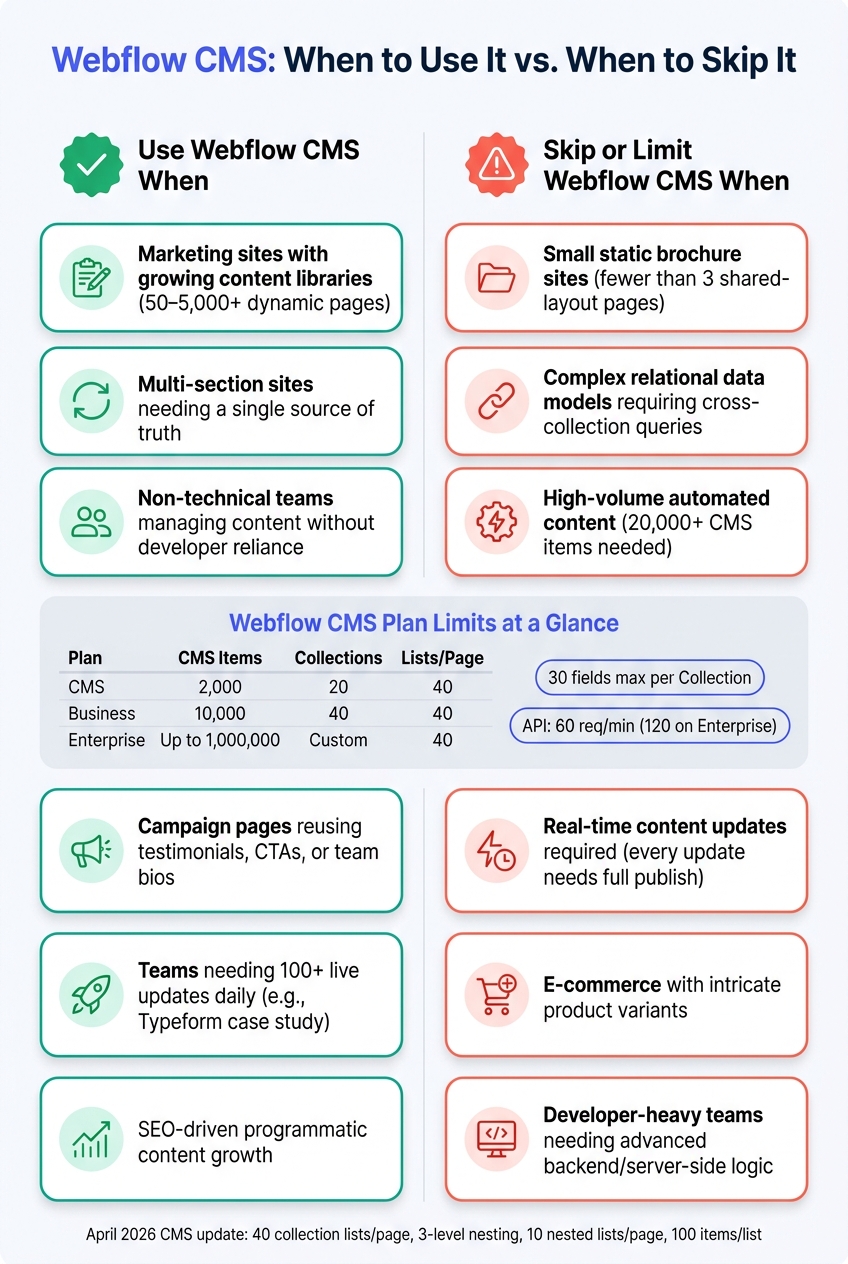
Webflow CMS Plan Limits & Feature Comparison
Webflow CMS shines when used for projects that demand dynamic design and efficient content management. Here’s where it truly stands out:
If your team frequently publishes blog posts, case studies, or resource guides, Webflow CMS is a game-changer for managing dynamic content for SEO. As content grows, maintaining consistency across dozens - or even hundreds - of pages can quickly become overwhelming.
Take Typeform, for example. After transitioning to Webflow, they now manage a blog library with nearly 400 articles and execute up to 100 live website updates daily. Becca Vibert, their Head of Web, summed it up perfectly:
"Tasks that used to take days now take just an hour with Webflow, and when you scale that impact, it changes everything."
This efficiency is crucial for programmatic SEO and content-driven growth. Webflow CMS can handle anywhere from 50 to 5,000 dynamic pages with ease.
For larger sites, consistency across different sections is critical. Imagine a team bio that appears in three places but only gets updated in one - or a product description that’s revised in one section but remains outdated elsewhere. Webflow CMS solves this with its single source of truth model. Update a field in a Collection, and every page referencing that content updates instantly.
The April 2026 Next-Gen CMS update enhanced this capability by supporting up to 3 levels of nesting and 10 nested Collection lists per page. This makes it easier to integrate complex, layered content - like menu items or allergen data - into a single, manageable structure. Leslie Crosby, Senior Frontend Developer at Civilization, highlighted the benefits:
"With deeper nesting and more flexible CMS-driven layouts, you can create pages... in a way that feels much more intuitive for everyone involved. That's a strong step forward for teams that want to deliver rich, structured content while keeping their setup simple."
Additionally, role-based access ensures that content editors can make updates to text and images without risking accidental changes to the design, keeping high-traffic pages safe from errors.
Campaign teams often face the tedious task of duplicating content - like testimonials, pricing, or team bios - across multiple landing pages. This process is not only repetitive but also prone to errors. Webflow CMS simplifies this by allowing teams to store content in Collections and reuse it across different pages using Reference fields and Collection Lists.
A great example is Walker & Dunlop, who used this structured approach to transform their website into a powerful sales tool. The result? A 56% increase in form fills. Kokko Tso, their VP of Digital Marketing, explained:
"Webflow empowers us to do what we do best as marketers, designers, and content creators: It strips away the technical complexity and unleashes us to be creative, try new things, and iterate quickly."
The takeaway here is simple: by binding shared content like CTAs or testimonials to reusable collections, you can update all campaign pages instantly - no copy-pasting, no mismatched versions. This not only saves time but also ensures consistency across your site.
Webflow CMS is a great tool, but it’s not always the right fit for every project. In some cases, integrating a CMS can add unnecessary complexity. Here are a few scenarios where Webflow CMS might not be the best option.
If your website consists of just a handful of pages like "About", "Contact", or "Services" that don’t change often, a CMS might be overkill. These types of pages typically don’t need a repeatable structure, which is where a CMS shines. When fewer than three pages share a similar layout, sticking with static pages can save you time and effort. Static pages are faster to build, easier to maintain, and simpler for your team to handle. However, as your project grows beyond a few static pages, other challenges might start to emerge.
Webflow has its limits when it comes to handling intricate relational data. For example, it doesn’t support native cross-collection queries. So, if you need to filter content by multiple factors like author, category, and engagement simultaneously, you’ll likely need to rely on custom JavaScript or external tools. Additionally, Webflow imposes restrictions, such as a cap of 40 collection lists per page and 100 items per collection list.
As one expert from werun.dev put it:
"The moment your editorial team needs to manage content relationships that replicate a complex database schema, you are looking at either a headless CMS... or a WordPress installation with a properly architected custom post type structure." - werun.dev
If your content structure starts resembling a database with intricate relationships, Webflow CMS may not be the most efficient choice.
Webflow also struggles with high-volume or automated content workflows. On its Premium plan, the platform limits users to 20,000 CMS items, while its API allows only 60 requests per minute (or 120 on Enterprise). For teams relying on programmatic content generation, these restrictions can quickly become bottlenecks. Another limitation is that every CMS update requires a full site publish, meaning real-time updates aren’t supported.
Moreover, Webflow has scaled back some of its native automation tools. Webflow Logic was discontinued on June 27, 2025, and native User Accounts were phased out on January 29, 2026. This means more complex workflows now depend on third-party tools like Make, Zapier, or n8n. If your project is expected to grow beyond 5,000 items or has a high rate of content creation, it’s smart to plan your architecture early. Reworking content models mid-project can be both time-consuming and expensive.
Choosing Webflow CMS for your project boils down to three main considerations: the volume of content you'll handle, who will manage it, and where you see the site heading over time. These factors can help you determine if Webflow CMS suits your project's scale and workflow.
Start by assessing how much content you currently have and estimating how much you'll add each month. Webflow's Premium plan allows up to 20,000 CMS items across 40 Collections, which is sufficient for most marketing websites. If you're publishing fewer than 20 items monthly, Webflow can meet your needs. But if your content output regularly exceeds this, you might face challenges in managing it effectively.
"The real question is whether Webflow fits your content scale... or whether it becomes an expensive mismatch once the site grows past a simple marketing page." - BRIX Templates Editorial
It's not just about the number of items - how you display your content matters too. Webflow imposes limits of 40 Collection lists per page and 100 items per list. Planning your content architecture upfront - setting up field schemas and defining Collection relationships - can save you from complex migrations down the road.
Next, take a close look at your team's structure and how they work. Webflow is tailored for marketing-led teams that need the freedom to publish and update content without relying on developers. Its Editor interface is user-friendly, allowing non-technical team members to safely make updates without altering the site's design or structure.
"Webflow is the better option for marketing-focused teams, as it works most effectively when marketing owns the website roadmap and needs to launch pages... without needing developer changes." - Matt Biggin, Copywriter, Veza Digital
If your team mainly consists of marketers or content writers, Webflow is likely a good match. On the other hand, if your team is developer-heavy or needs to manage content across multiple platforms, you might be better off exploring other options. Scalability and performance are also critical aspects to evaluate for long-term success.
Performance plays a crucial role, especially if organic search is a priority for your site. Many Webflow sites meet Google's Core Web Vitals benchmarks, with approximately 85–95% passing out of the box. However, overall performance metrics like Lighthouse scores vary, with studies showing an average score of around 62.
Another factor to watch is bandwidth usage. The Premium plan includes 50 GB of bandwidth, but exceeding this limit for two consecutive months will trigger an automatic plan upgrade. For media-heavy sites, consider offloading large files - such as videos to Vimeo or images to a CDN like Cloudinary - to manage bandwidth more effectively. If your project is expected to surpass 20,000 CMS items, you might want to store content externally in tools like Airtable and sync it with Webflow. This approach keeps your data portable and your options open.
Looking back at the key factors - content volume, team workflows, and scalability - Webflow CMS stands out as a powerful tool when used in the right scenarios. It shines for teams needing to move fast, handle growing structured content, and maintain top-notch design. It's especially effective for marketing-driven teams that need to launch pages and updates without relying on developers. As Webflow Expert Abhishek Doshi explains:
"Webflow wins when your site is a marketing asset, your team wants to ship without developer dependency, and performance matters to your SEO and conversion."
That said, Webflow does have its limits. It struggles with directories over 20,000 items, projects requiring server-side logic, or e-commerce catalogs with intricate product variants. In these cases, Webflow often works better as part of a larger tech stack rather than a stand-alone solution.
For most marketing needs, Webflow CMS simplifies content management and delivery. If your team frequently finds itself waiting on developers to make updates, a Webflow retainer can eliminate that bottleneck. On the other hand, if your project requires real-time data handling or advanced backend functionality, you might need to combine Webflow with a dedicated application framework or consider a headless architecture.
At The Hoop Studio, we've tackled these decisions across a range of projects - from marketing sites and SaaS brands to B2B platforms. Whether it's a small growth-focused site or a complex enterprise migration, our approach always begins with one critical question: what does this site need to accomplish, and who will manage it? Answering that upfront ensures your Webflow build stays aligned with your goals and budget over time.
The easiest way to determine if you need a CMS is by taking a close look at your content. If you regularly produce similar types of content - like blog posts, case studies, or FAQs - a CMS can save you time and effort. A simple guideline: when three or more items follow the same structure, it's a good idea to use a CMS collection.
On the other hand, static pages are better suited for unique layouts, such as your homepage or contact page, where the design doesn't repeat across your site.
When planning for growth, it's smart to design a CMS schema that aligns with your content goals for the next 3–5 years. Keep it simple - steer clear of unnecessary or overly complicated collections that could bog things down.
If you're managing a project with more than 10,000 items, consider using a reverse proxy. This allows you to link multiple Webflow sites under a single domain, making it easier to handle large-scale content. For even bigger datasets, you can connect an external database through the Webflow API. This approach lets you dynamically display content without worrying about hitting CMS storage limits.
When your primary data source lives outside Webflow - like Airtable, Notion, or a CRM - it’s often better to keep that data external and sync it with Webflow as needed. This setup is ideal for situations like:
For real-time needs, such as live inventory updates or member dashboards, dynamic JavaScript or live widgets are a smarter choice. They help you bypass CMS limitations and avoid delays caused by data syncing.