





Insights
Webflow
Copy Link




Boost Webflow form completion with single-column layouts, multi-step flows, clear validation, WCAG-friendly labels, and mobile-first input optimization.
69.2% of users abandon online forms. Why? Poor design, unnecessary fields, and lack of mobile optimization are major culprits. But here's the good news: small changes can make a big difference.
To create better Webflow forms:
Your form is the final step in converting visitors into customers. Design it well, and you’ll see better results.
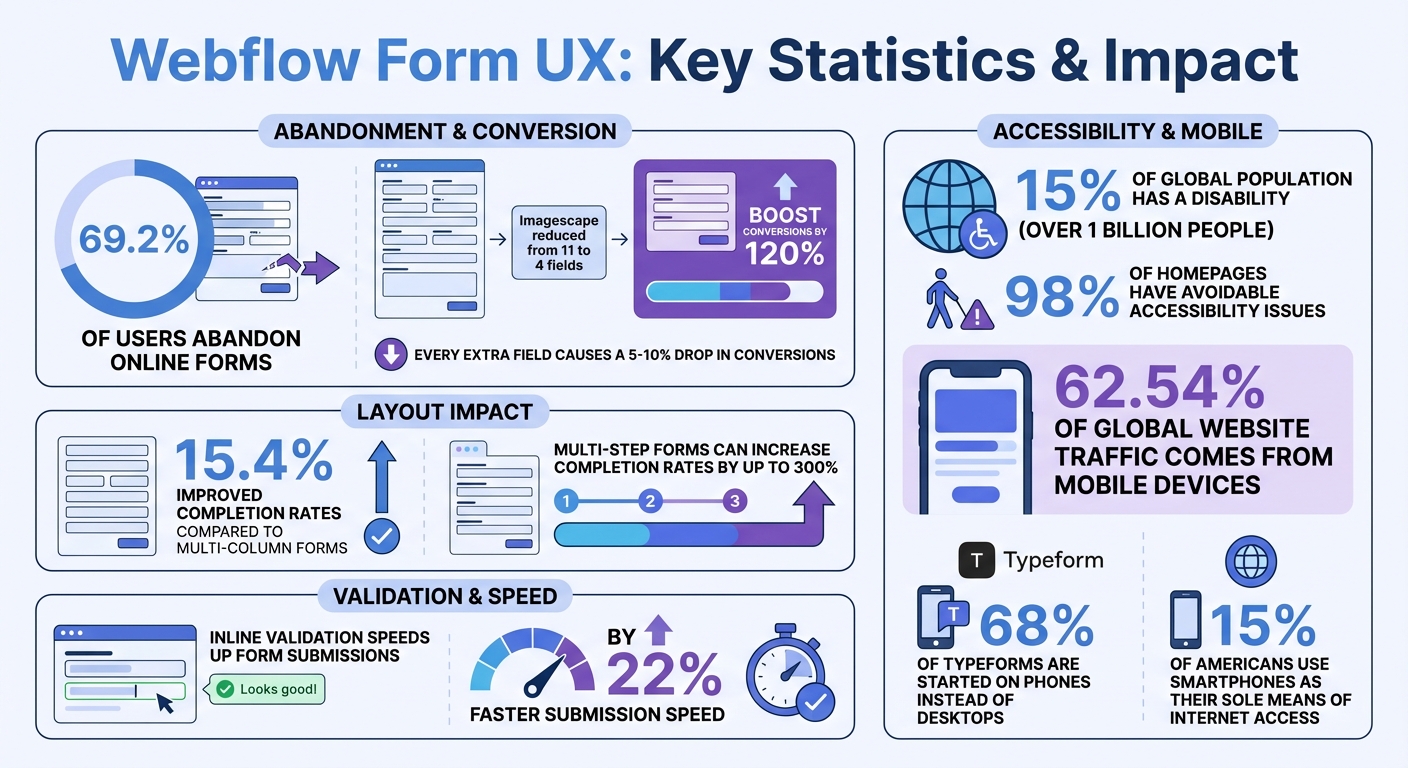
Webflow Form UX Statistics: Completion Rates and Best Practices
The way your form is laid out can make or break how quickly users can scan and complete it. A single-column layout offers a clean, vertical flow that keeps eye movement minimal. This design works well for forms like contact pages, newsletter signups, or any scenario where you want to gather information quickly and efficiently.
Multi-column layouts, on the other hand, should be used sparingly. They're ideal for saving vertical space or when grouping short, related fields like First Name and Last Name side-by-side. Studies show that single-column designs boost completion rates by 15.4% compared to multi-column setups. Why? Because jumping between columns forces users to make more eye movements, which can lead to frustration and abandonment.
If you're working in Webflow, start with the Form block from the Add panel under the Forms section. This gives you a basic setup with two text inputs and a submit button. From there, stack your fields vertically and place labels above each input rather than to the side. This not only improves mobile responsiveness but also aligns with how users naturally read and interact with forms.
While single-column layouts are the go-to for most forms, multi-column designs can work in specific cases. For example, a "mini form" with just one to three inputs - like an email capture form with a button in the same row - benefits from a horizontal layout. Similarly, pairing First Name and Last Name fields side-by-side feels intuitive because they’re closely related. Beyond these exceptions, stick with a single-column approach.
| Layout Type | Best Use Case | Key Benefit |
|---|---|---|
| Single-Column | Contact forms, lead capture, general data collection | Minimizes eye movement; boosts completion rates by 15.4% |
| Multi-Column | Saving vertical space; related short fields | Fits more on-screen without scrolling |
| Mini Form | Email signups, search bars | Compact design with button and input aligned |
Arrange your fields in a logical order, starting with simpler questions like Name and Email before moving on to more detailed ones. This taps into commitment psychology: once users start filling out the form, they’re more likely to finish. For longer forms, break them into steps to keep users engaged.
If your form has more than seven fields, consider splitting it into multi-step sections with no more than five fields per step. This avoids overwhelming users with a long, intimidating list of questions. Multi-step forms can increase completion rates by as much as 300% compared to single-page forms.
Here’s why this works: once users complete the first step, they’ve invested time and effort. The sunk cost fallacy encourages them to keep going - they don’t want their effort to go to waste. Begin with easy, low-pressure questions like “What service do you need?” to get them started, and gradually move to more detailed ones.
Always include a progress indicator, such as a bar or a "Step 2 of 4" counter, to show users how far along they are. This helps manage expectations and reduces anxiety. In Webflow, you can create multi-step forms using the Slider component to wrap each step. For more advanced functionality, you might need third-party tools.
Keep each step focused by grouping related fields together. For instance:
This logical progression helps users stay organized, reduces errors, and ensures more accurate data collection. Once you've structured your form, make sure it complies with accessibility standards.
Accessibility isn’t just a nice-to-have - it’s a must. Around 15% of the global population (that’s over a billion people) lives with a disability that can affect how they interact with digital content. In the U.S., 1 in 4 Americans faces similar challenges. If your Webflow forms aren’t built with accessibility in mind, you’re not only excluding a large audience but also putting yourself at risk of legal trouble. Plus, accessible forms can improve user experience and boost conversions by eliminating unnecessary frustration.
To ensure accessibility, forms should follow the POUR principles: they must be Perceivable (content is visible or audible), Operable (usable without a mouse), Understandable (clear instructions), and Robust (works with assistive technologies like screen readers). Most websites aim for WCAG Level AA compliance, the benchmark for accessible design. However, a review of one million homepages revealed that 98% had avoidable accessibility issues, underscoring the importance of ongoing improvements.
"About 15% of the world's population has a disability - that's more than 1 billion people who have a negative user experience when sites aren't designed for accessibility."
– Webflow Help Center
Webflow offers tools like the Audit Panel to catch common issues (e.g., missing labels or duplicate IDs) and Vision Preview to simulate how users with visual impairments experience your forms. These tools not only help refine your design but also enhance usability and conversions.
Proper labeling is key. Every input field needs a visible, persistent label - not just placeholder text. In Webflow, you can manually link labels to inputs by assigning a unique ID to each input field and adding a custom attribute to the label (set the Name to for and match it to the input’s ID).
Color contrast is another essential factor. Text should meet a contrast ratio of at least 4.5:1 for normal text and 3:1 for larger text (18pt or 14pt bold) to comply with WCAG Level AA. Use Webflow’s Style Panel to check contrast, particularly for placeholder text and borders - steer clear of light gray text on white backgrounds.
Keyboard navigation is critical for accessibility. Users should be able to navigate through form elements using Tab, Shift+Tab, Enter, or Space. Clearly style the focused state of each field without removing the default blue outline, which serves as an important visual cue . Use the Style Panel to customize the Focused and Focused (keyboard) states to make active elements stand out.
Here’s a quick breakdown:
| WCAG Requirement | Webflow Tool | Common Pitfall |
|---|---|---|
| Labels for Inputs | Element Settings (ID + "for") | Relying on placeholder text instead of labels |
| Color Contrast | Style Panel (Contrast Checker) | Low-contrast placeholder text or borders |
| Keyboard Navigation | Style Panel (Focused State) | Removing the blue focus outline |
| Error Identification | Custom Attributes (ARIA) | Using browser tooltips that screen readers skip |
| Focus Order | Navigator Panel | Disrupting logical order with Z-index |
Avoid using autofocus, which places the cursor in a field as soon as the page loads. This can confuse screen reader users by removing important context. By following these guidelines, you’ll create forms that are not only compliant but also user-friendly.
Error messages should be clear and actionable. Instead of vague terms like "Invalid", use specific instructions such as "Please enter a phone number with 10 digits" .
"Telling me an entry is 'invalid' is not only potentially offensive, but also isn't helpful, because it doesn't explain what a 'valid' entry looks like."
– John Moore Williams, Webflow
Webflow’s native HTML5 validation can be inconsistent across browsers and often fails to notify screen readers of errors. To improve accessibility, use the aria-describedby attribute to link error messages to their respective input fields, ensuring that screen readers announce errors when the field is focused.
Never rely solely on color to indicate errors. Combine color cues with icons, bold text, or distinct borders so users with color blindness can also identify issues . Additionally, error messages should stay visible until the problem is resolved - temporary messages that vanish when users click away are unhelpful.
Don’t disable the submit button for incomplete forms. This can trap keyboard users and prevent screen readers from identifying what needs to be fixed. Instead, allow submission and display clear error messages for any issues. When errors occur, shift focus to the first problematic field to guide users through corrections.
"Webflow's native form system is not accessible. Out of the box, it doesn't meet basic WCAG requirements for labels, errors, or focus handling."
– Crystal Scott, CPWA, Graceful Web Studio
Proactive guidance can also reduce errors. Include helper text like "Password must include one capital letter" beneath input fields to clarify expectations upfront . This small step can make a big difference in reducing user frustration and cognitive load.
Making sure your forms work well on mobile devices is no longer optional - 62.54% of global website traffic comes from mobile devices, and 68% of Typeforms are started on phones instead of desktops. For 15% of Americans, smartphones are their sole means of accessing the internet. This means your mobile form might be the only version users ever see. If your Webflow forms aren’t seamless on smaller screens, you could lose potential conversions before they even reach the submit button.
Google’s mobile-first indexing raises the stakes even higher. Since Google evaluates your site based on its mobile version, not the desktop layout, clunky or poorly designed forms can frustrate users and hurt your rankings. On the other hand, mobile-friendly forms create a smooth, trustworthy experience that encourages users to complete them.
"Designing for mobile is the process of creating a web layout that adjusts to fit mobile screens and suits the needs of touchscreen devices. But it's about more than having a condensed mobile version of your desktop website - it's about actively optimizing for mobile users."
– John Moore Williams, Webflow
Mobile users are often multitasking or on the go, so your forms need to be quick, clear, and easy to navigate with one hand. Touchscreens are less precise than a mouse, so every element - buttons, checkboxes, and input fields - should be large enough to tap easily. Even small details like font size, spacing, and input type can make a huge difference in the user experience.
The first step? Stick to a single-column layout. This creates a simple, vertical flow and avoids the need for horizontal scrolling. While multi-column layouts may look neat on desktops, they can become cramped and confusing on mobile screens. Keep it straightforward: one field per row.
Font size matters. Use at least 16px for input text to stop mobile browsers (especially on iOS) from zooming in when a user taps a field. This zooming disrupts the experience and forces users to pinch and adjust their screens. Larger text also helps with readability, especially for users with vision impairments or those filling out forms in bright sunlight.
Touch targets - like buttons, checkboxes, and input fields - should be at least 44x44 pixels to make tapping easy and accurate. Add padding around interactive elements and ensure there’s plenty of white space to avoid accidental taps. If users have to zoom in or repeatedly tap to hit a button, they’re more likely to abandon the form.
Set input types (e.g., email, phone) in Webflow to trigger the right mobile keyboards. For example, an email field should pull up a keyboard with the “@” symbol, while a phone field should bring up a numeric keypad. These small adjustments save time and make filling out forms less frustrating. For date fields, use a native calendar selector instead of requiring users to type.
Avoid dropdown menus if you can. They’re awkward on mobile and require multiple taps. Replace short lists with radio buttons or tappable options instead. For instance, instead of a dropdown for “Yes” or “No,” use two large, clearly labeled buttons. This reduces friction and speeds up the process.
Use top-aligned labels that stay visible while users type. Unlike placeholders, which disappear when typing begins, top-aligned labels reduce confusion and prevent users from forgetting what a field was asking for.
| Element | Mobile Best Practice | Benefit |
|---|---|---|
| Layout | Single-column (stacked) | Prevents horizontal scrolling; clearer flow. |
| Font Size | 16px minimum | Stops browser zooming on iOS; improves readability. |
| Touch Target | 44x44 pixels (minimum) | Makes tapping accurate and frustration-free. |
| Labels | Top-aligned, always visible | Keeps context clear while typing. |
| Input Types | tel, email, number, date | Pulls up the correct mobile keyboard. |
For longer forms, break them into multi-step layouts. Showing just a few fields at a time helps users stay focused and prevents overwhelm. For single-choice questions like “Are you a new customer?”, use auto-advance to move users to the next step automatically after they select an answer. This creates a more conversational, less tedious experience.
Once you’ve optimized your forms for mobile, it’s time to test them across different devices. Use Webflow’s built-in breakpoints to preview how your form looks on tablets, mobile landscape, and mobile portrait views. Don’t assume something that works on one screen size will work everywhere. Test both orientations - landscape and portrait - to ensure no elements overlap or become unreadable.
For example, in April 2023, the Alpha Coach fitness site redesigned its three-column desktop layout into a single vertical column for mobile users. This ensured the content remained clear and accessible without changing the messaging. Similarly, Amour Bridal, a template by Ana Aguiar, transformed a horizontal desktop menu into a vertical dropdown for mobile while preserving full-page background images and logical navigation. Another example is Chosen Youth, created by Kat Cuevas, which used larger, bright yellow CTA buttons on mobile to make navigation easier for potential donors.
Take advantage of Webflow’s preview mode to check button sizes and text contrast on various device simulations before publishing. Pay special attention to error messages - make sure they don’t block input fields or the submit button. Since HTML5 validation can vary between mobile browsers, test your custom error messages to ensure they stay visible until users fix the issue.
Finally, check your form’s load time on slower cellular connections. Compress images and videos near your forms to ensure they load quickly, as many mobile users rely on 3G or 4G networks. If your form takes too long to load, users might leave before they even start filling it out.
Don’t forget to test with text zoom enabled. Some users enlarge text for better readability, and your form should remain functional when this happens. Webflow’s “Text zoom preview” in the Canvas settings lets you simulate this experience. If your form breaks when text is scaled up, it’s not mobile-ready yet.
A well-designed form does more than just collect information - it guides users seamlessly through the process. With users forming opinions in as little as 0.05 seconds and nearly 69.2% abandoning forms before completion, creating a clear path to the submit button is non-negotiable.
If your form feels cluttered or confusing, users will leave. To avoid this, use size, color, spacing, and typography to direct their attention straight to the CTA button.
"Forms are conversion tools. Forms are communication bridges. Forms are the final step in your user's journey."
– Crystal Scott, Founder & CEO, Graceful Web Studio
Visual hierarchy isn't just about making your form look good - it’s about ensuring every element serves a purpose. Start with a bold, clear headline to communicate the form's value. Use section titles to break the form into smaller, manageable parts, and include concise instructions to guide users without overwhelming them. A high-contrast CTA button that stands out against a muted background ensures users know exactly where to click.
Accessibility should also play a key role in your design. Studies show that 98% of homepages have avoidable accessibility barriers. To ensure your form works for everyone, including those with vision impairments or cognitive disabilities, focus on creating an accessible visual hierarchy. This includes thoughtful typography, clear button designs, and layouts that work seamlessly with assistive technologies.
Typography and spacing are the invisible tools that help users navigate your form without frustration. A single-column layout with vertically stacked input fields creates a natural downward flow, making it easier to follow than multi-column designs. Always place labels above input fields - not inside them as placeholders, which disappear once users start typing and can cause confusion.
Here are some practical tips for typography and spacing:
Keep hint text below input fields so users can refer to it while typing. Additionally, ensure all text and interactive elements meet a minimum contrast ratio of 4.5:1 to comply with WCAG AA standards. Webflow’s color picker includes a built-in contrast analyzer, making it easy to check your design in real time.
| Element | Best Practice Technique | UX Benefit |
|---|---|---|
| Layout | Single-column vertical stack | Shorter eyepath for faster completion |
| Labels | Positioned above input fields | Better mobile scaling and vertical flow |
| Font Size | Minimum 14pt / Use rem units | Improved readability and responsiveness |
| Contrast | Minimum 4.5:1 ratio | Ensures accessibility for all users |
| Hint Text | Below input fields | Offers continuous guidance during typing |
For longer forms, break them into sections using headings (H1, H2, H3) to make the content easier to digest. Once your typography and spacing are on point, the final step is creating a CTA button that seals the deal.
The CTA button is the last step in the user's journey, and it needs to stand out. Use high-contrast colors - for example, a blue or purple button on a neutral background - to immediately draw attention. Replace generic text like "Submit" with action-driven phrases such as "Create my account", "Start exploring", or "Get the free training". These labels clarify what users can expect after clicking.
"Your CTA draws attention to the action you want the user to complete. For a sign-up form, include a button to make the action easy to perform. The text should prepare them for what to expect next."
– Webflow Team
Avoid disabling the submit button. Instead, let users click it and provide error messages if something needs fixing. Disabled buttons can frustrate users and block keyboard navigation. Use Webflow’s "Loading" state to display a message like "Please wait..." after the button is clicked, reassuring users that their submission is being processed.
Here are some additional tips for effective button design:
Finally, avoid vague terms like "Click here" or "More." Instead, use precise language that explains the button’s purpose clearly. A well-designed CTA button doesn’t just complete the form - it leaves users with confidence in their action.
Research highlights some impressive stats: single-column layouts can improve form completion rates by 15.4%, inline validation speeds up submissions by 22%, and using multi-step forms might increase completions by as much as 300%.
To start, focus on the basics of form layout. Stack fields vertically, keep labels visible at all times, and split lengthy forms into multiple steps. This approach helps counter the typical 5–10% drop in conversions that happens with every extra field you add.
Accessibility should be a priority in every design. With 98% of homepages still featuring avoidable accessibility barriers and roughly 15% of the global population living with disabilities, tools like Webflow's Vision Preview and Text Zoom Preview can help. These tools ensure your designs meet a 4.5:1 contrast ratio and support smooth keyboard navigation.
Don’t overlook mobile optimization. Use the right input types, ensure touch targets are large enough, and make text scalable. When nearly 69.2% of users abandon forms before completing them, these small adjustments can significantly impact your conversion rates.
Reducing the number of fields in a form can make the user experience smoother and more efficient. When forms are shorter, they feel less overwhelming, which often leads to higher completion rates. In fact, research shows that forms with just three fields tend to achieve the best conversion rates.
This simplicity doesn’t just benefit users - it can drive meaningful business results too. Removing unnecessary fields has been linked to conversion rate increases of 20–60%. In one standout case, this approach generated millions of dollars in extra revenue. By making forms quicker and more user-friendly, businesses not only save users time but also encourage them to complete the process with ease.
To make Webflow forms usable for everyone, including individuals who depend on assistive technology, there are a few essential steps to follow. Start by ensuring every form input has a clear and visible label. Avoid relying solely on placeholder text - it can vanish when a user interacts with the field, potentially causing confusion. Pair each label with a unique and descriptive ID to ensure proper association, and use button text that clearly states its purpose so users instantly understand its function.
Forms should also be keyboard-friendly. This means users should be able to navigate through all fields and controls using the Tab and Enter keys. Include a visible focus indicator to show which element is currently active. Use high-contrast colors for text, borders, and error messages to improve readability, and don’t use color alone to convey important information - add text or symbols for clarity. Additionally, consider implementing ARIA attributes, such as aria-required for mandatory fields or aria-invalid for errors, to help screen readers communicate validation states effectively.
Finally, test your forms with tools like screen readers and keyboard-only navigation. These tests can help pinpoint any lingering accessibility issues, ensuring your forms are intuitive and inclusive for all users.
A single-column layout streamlines forms by cutting down on visual distractions, making them easier to read and fill out. This design reduces the effort users need to scan and complete fields, often resulting in better completion rates. It’s also a great fit for mobile devices, where vertical scrolling feels intuitive and helps maintain a consistent experience across different screen sizes.